Linux Kamarada
“How to install apps” is the first question everyone trying out a new Linux distribution asks themselves, just as I did when I started using Manjaro. And the answer is: it’s possible to install software in several ways, just like it is on Windows, for example. But it can be as simple as installing apps from the Play Store (or the App Store, or the Microsoft Store) for those who are used to Android (or iOS or Windows). Manjaro has the Pamac package manager.

Programs can be installed on Manjaro using Pamac, Manjaro’s own package manager. In the Linux world, packages can be understood as “pieces” of software that make up the system. When you want to add a feature to the system, you usually look for the corresponding package and install it. There are packages for programs (such as the gimp package), but there are also packages for fonts (e.g. noto-fonts), icons (papirus-icon-theme), and so on.
The Pamac package manager can be used via both the graphical interface and the command line, and can retrieve packages from the official Manjaro (and Linux Kamarada) repositories, as well as from the AUR and Flatpak.
But let’s take it step by step. Most of the time when you want to install an app on Manjaro (or Linux Kamarada), there will be a package for it in the official Manjaro repositories, and you can easily install it using Pamac on your desktop (graphical interface). Let’s see how to do it.
For instance, I’ll show you how you could use Pamac to install GIMP. In case you don’t know it yet, GIMP stands for GNU Image Manipulation Program. GIMP is a free and open-source image editor that can be seen as an alternative to Photoshop (which you’ve probably heard of).
I picked GIMP just as an example, you don’t really need to install it, if you don’t actually need it. What I’m doing here is just to show you how to install apps on Manjaro using Pamac. Learn how to do it and install install whatever apps you want this way.
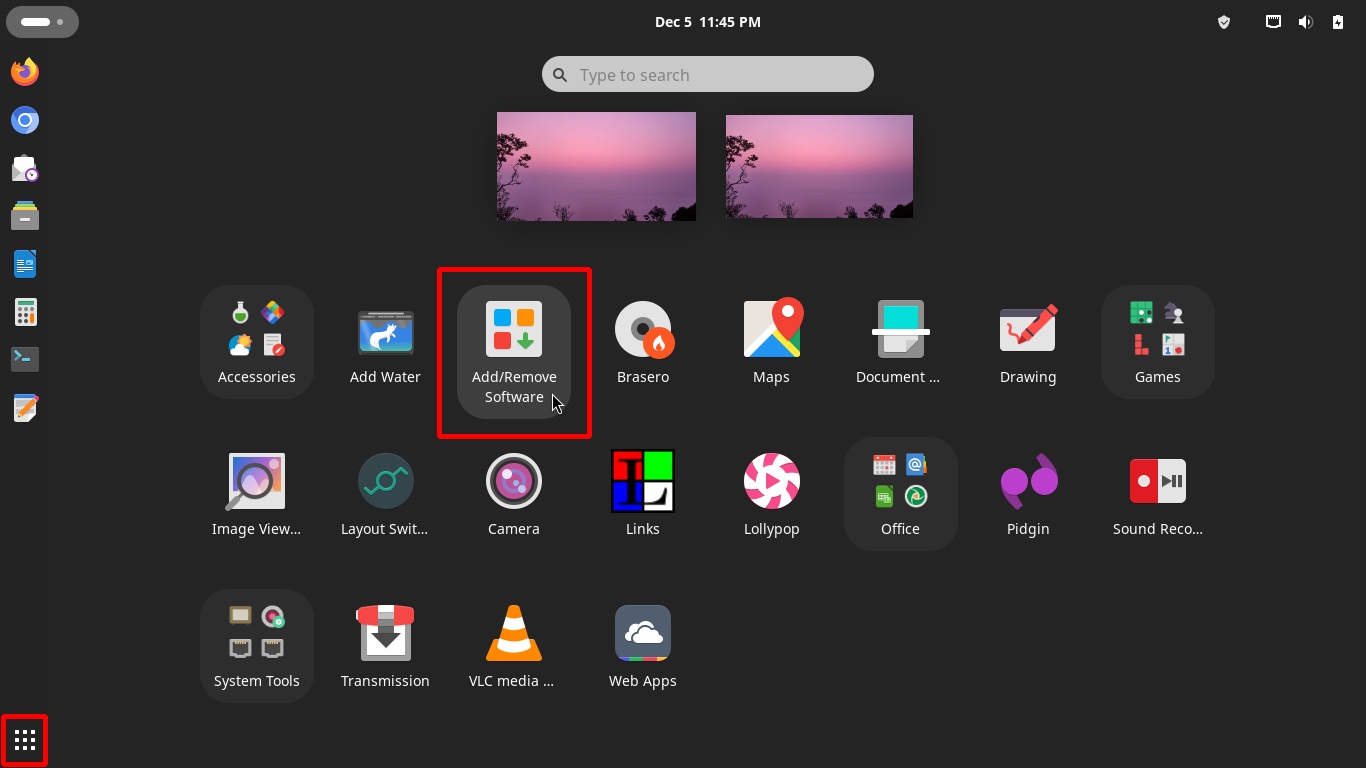
To start Pamac, click Show Apps, on the bottom-left screen corner, and then click the Add/Remove Software icon:
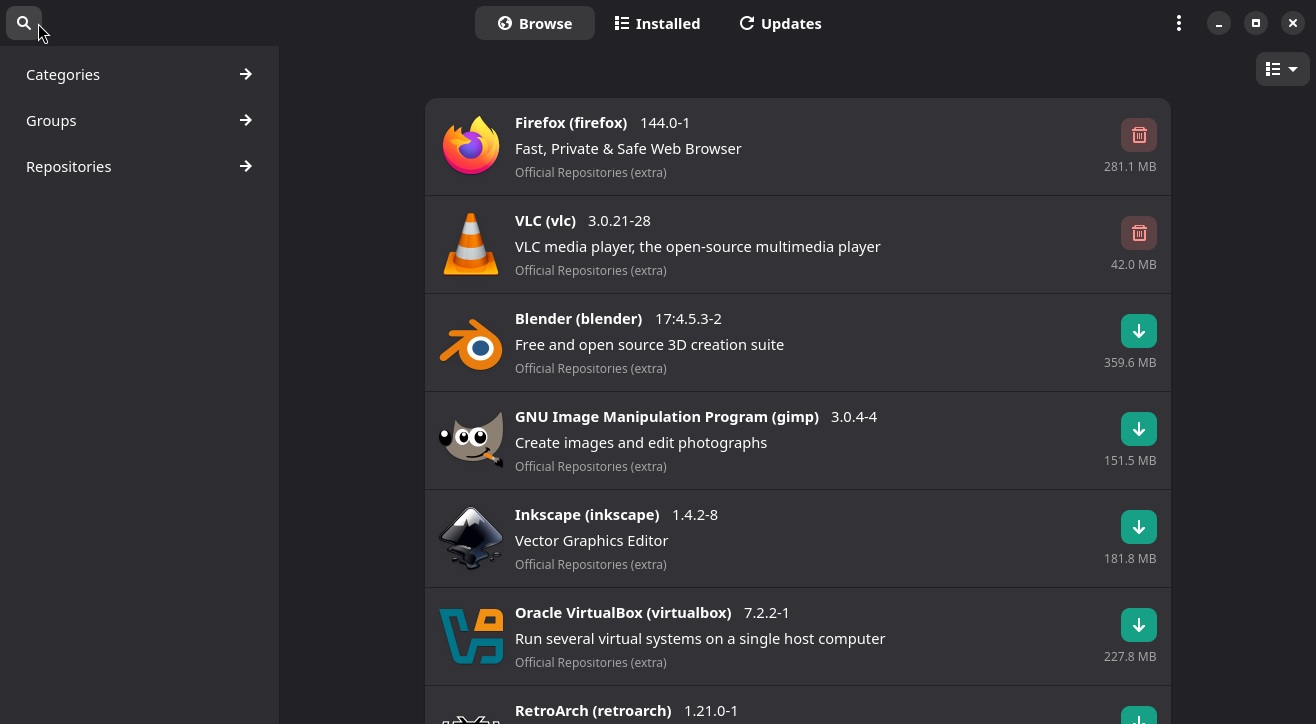
This is the Pamac home screen, showing some suggestions of popular apps to install:
Click the search button, on the upper-left corner of the window, and type the name of the app you are looking for (following our example, gimp):
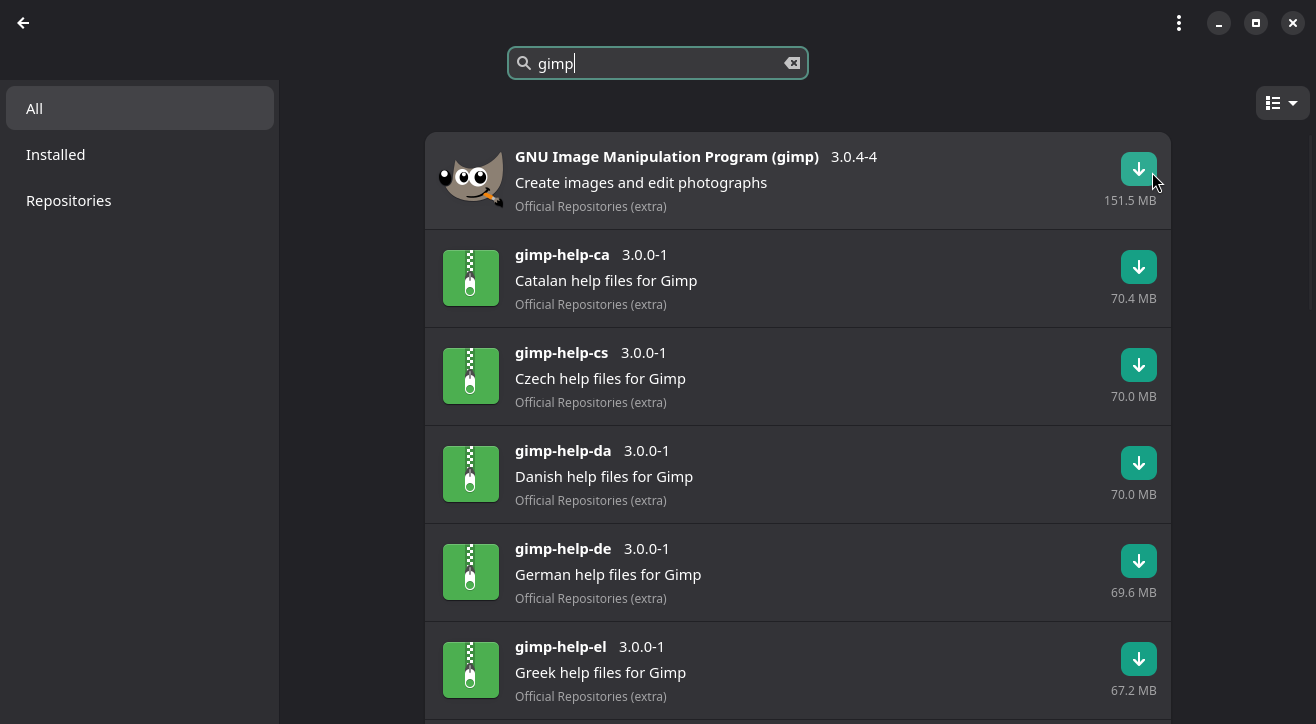
On this screen, you can check the package for installation by clicking the corresponding button by the right.
Or you can click its name (GNU Image Manipulation Program) to see more information about it and, on the next screen, click the Install button:
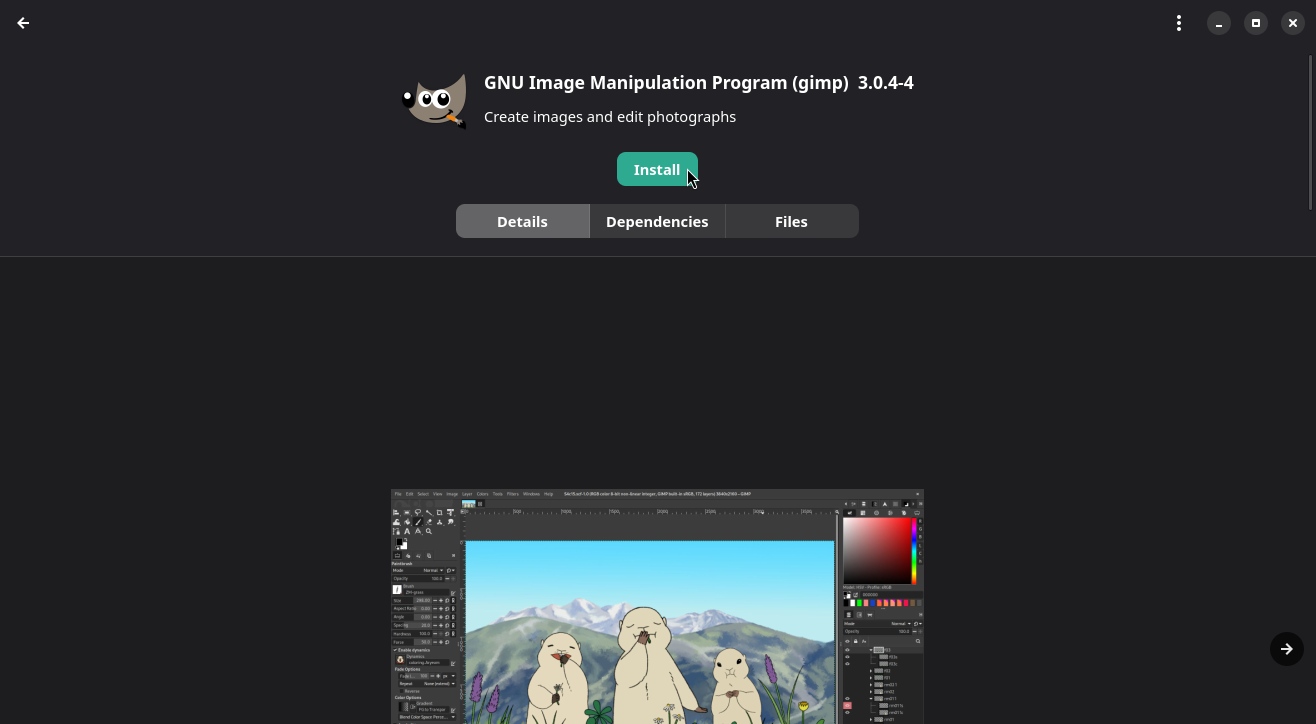
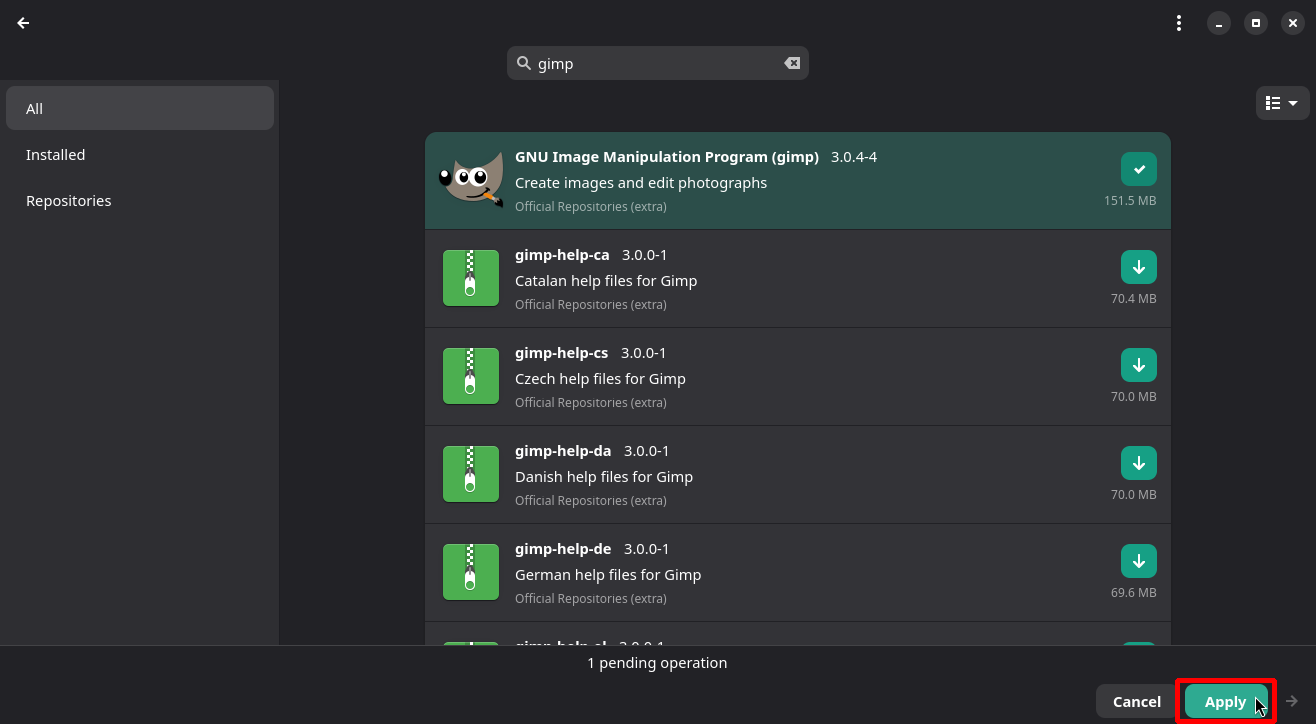
If you want, you can check more packages to be installed. When you are finished, click the Apply button at the bottom of the window:
There may be packages that add functionality to the app, but are not essential for it to work (what Pamac calls “optional dependencies”):
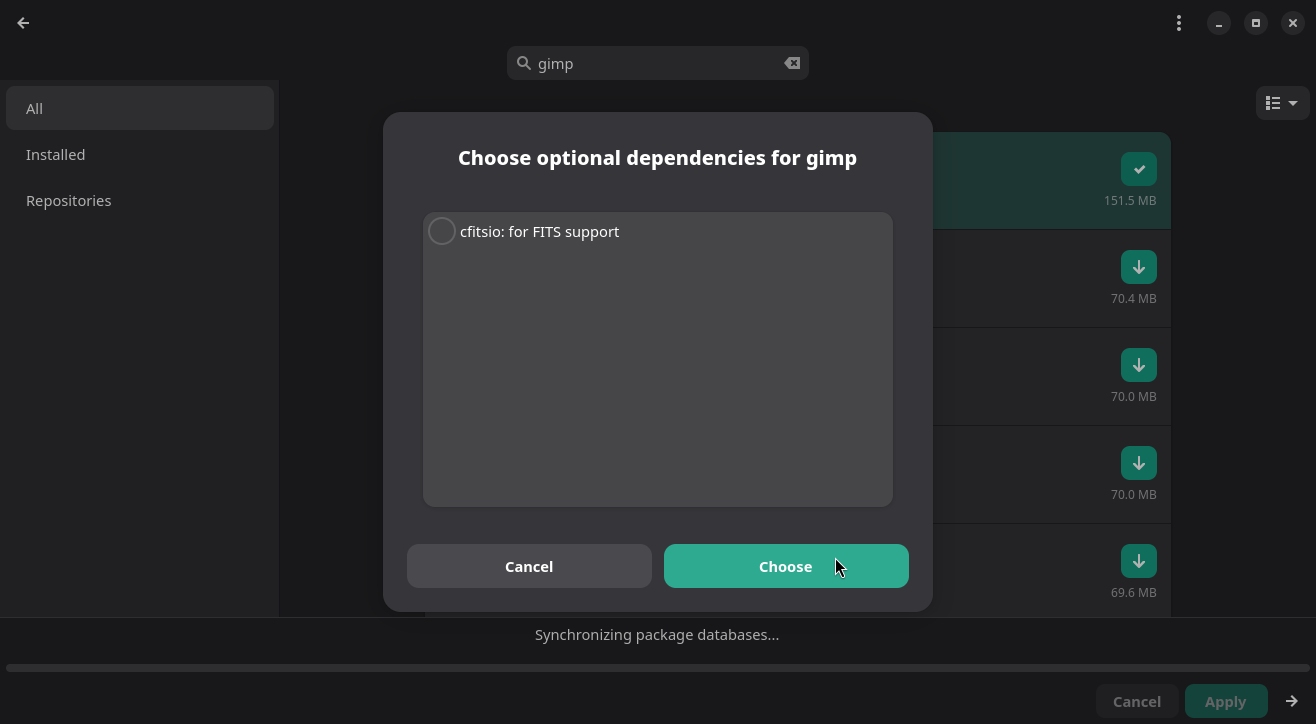
You can also check those packages to be installed, if you want (in doubt, select all, or none). When finished, click the Choose button.
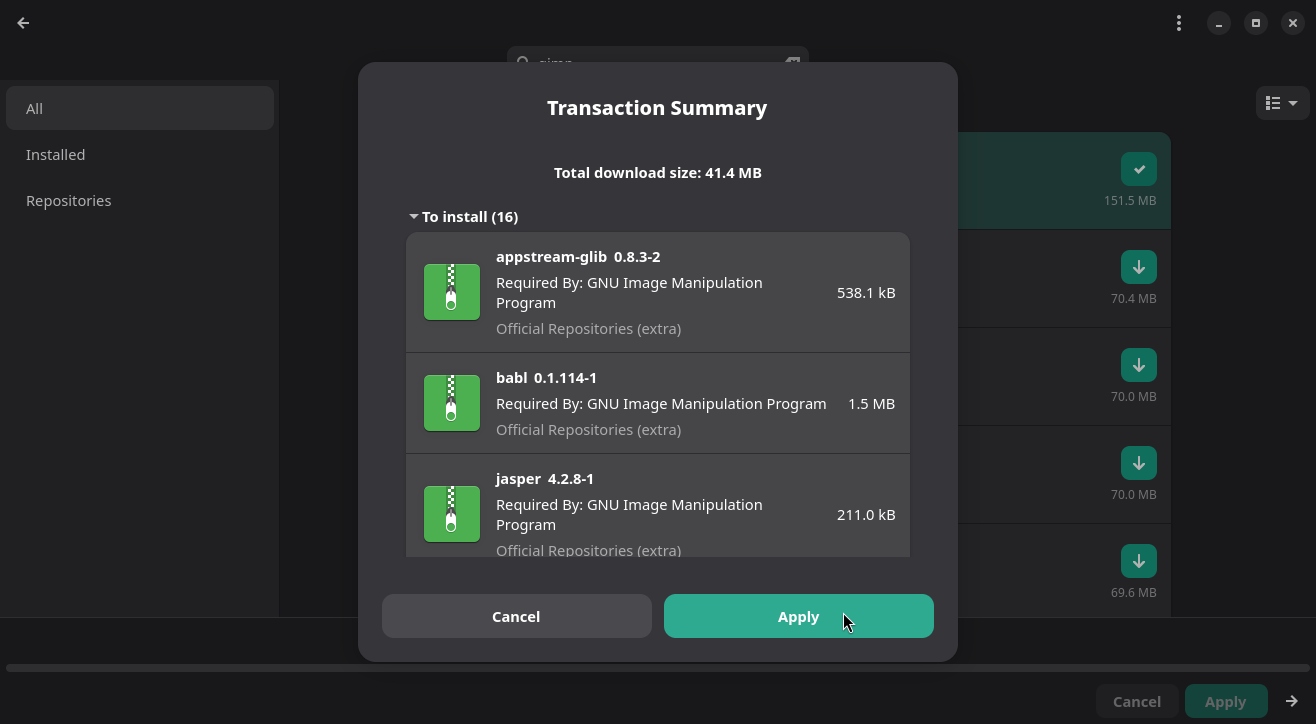
Pamac displays a summary of what is going to be installed. Click Apply:
Pamac starts downloading and installing the packages, which may take more or less time depending on the speed of your internet connection and computer:
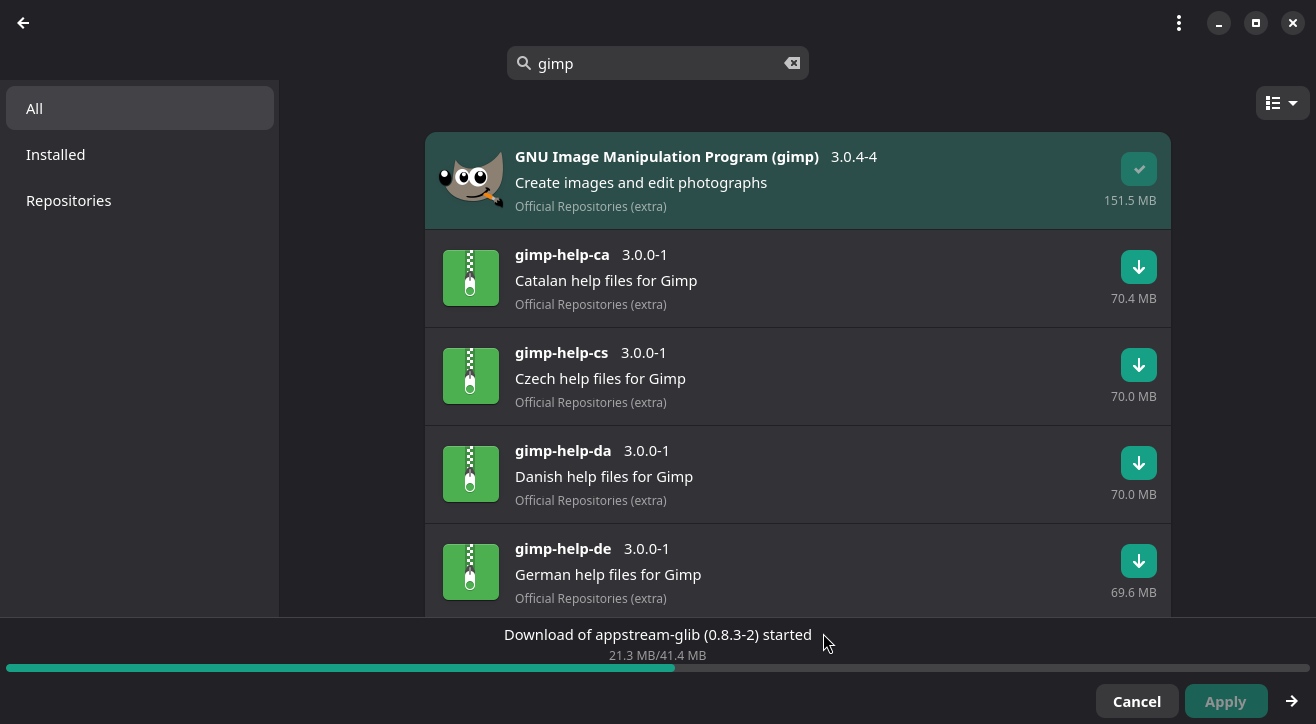
It will notify you when the installation is finished:
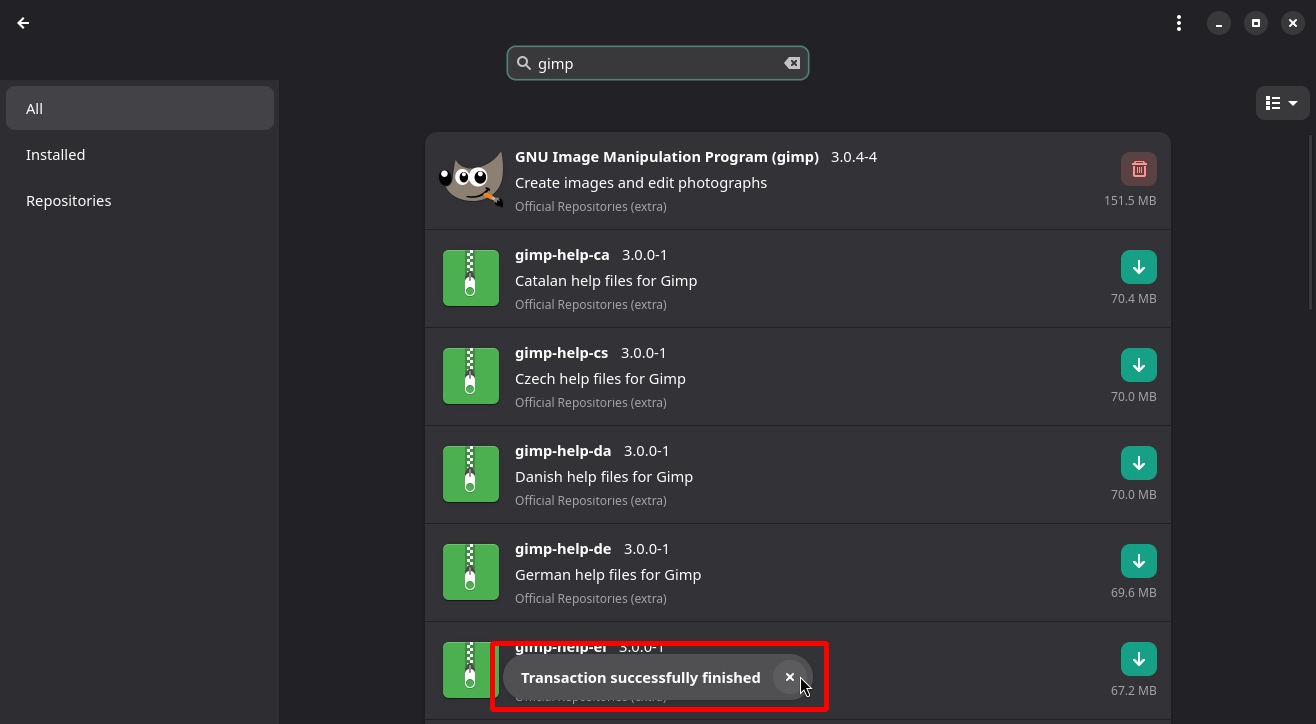
If you are not going to install any more packages, you can close Pamac now.
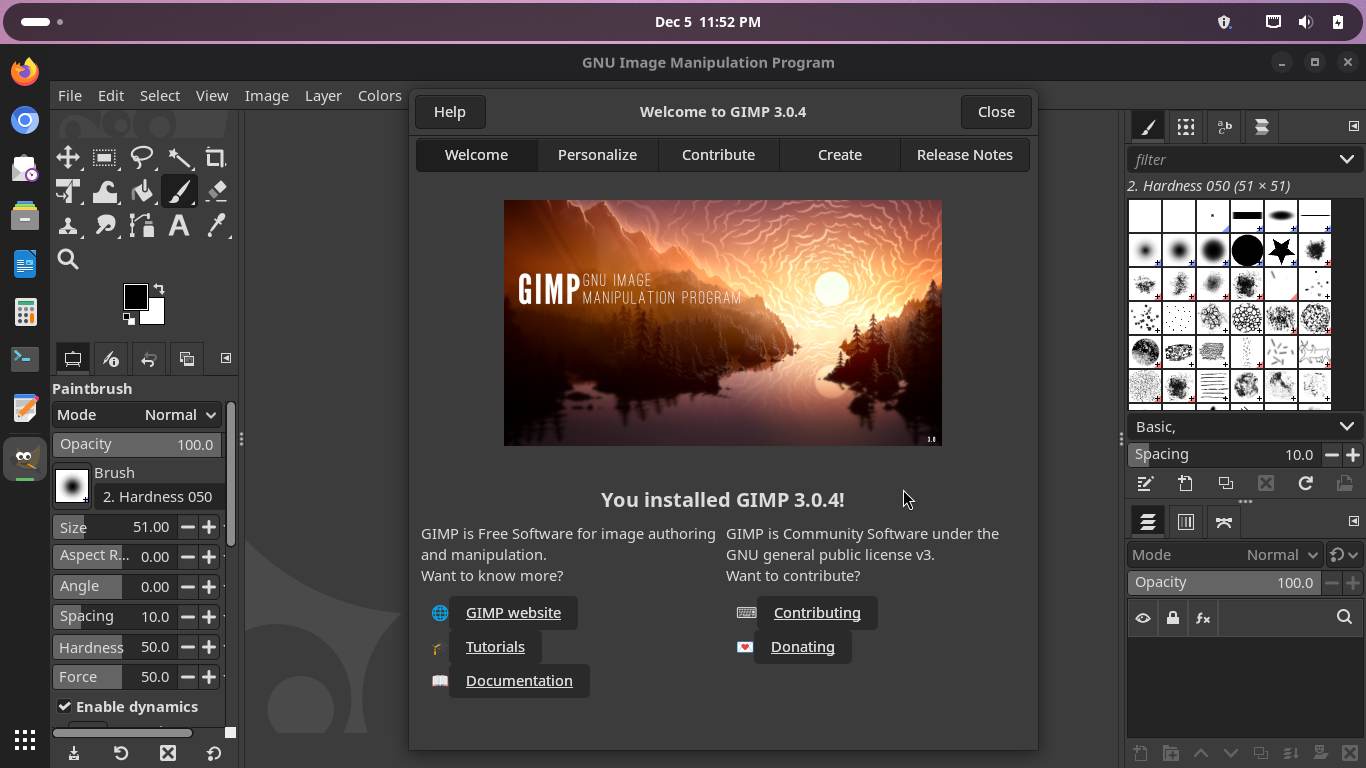
You can now launch and use the app you just installed:
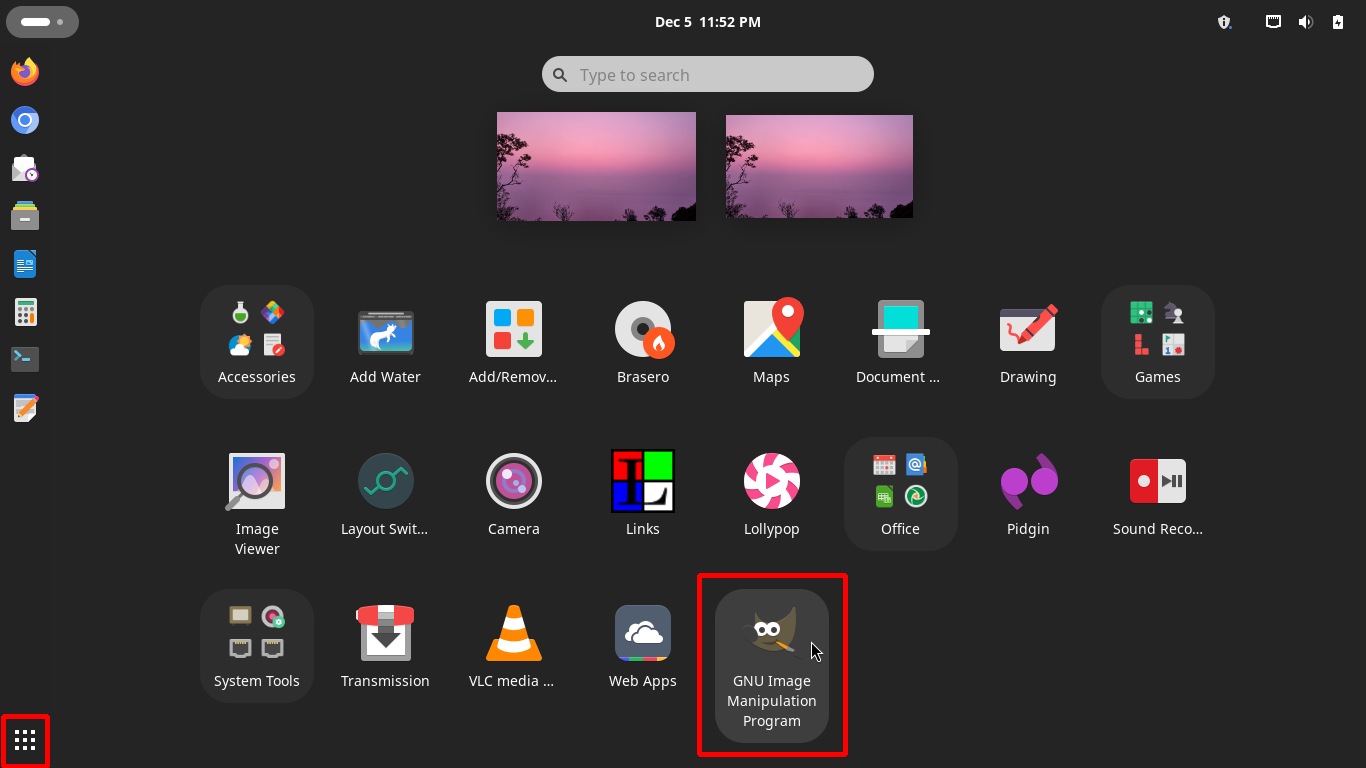
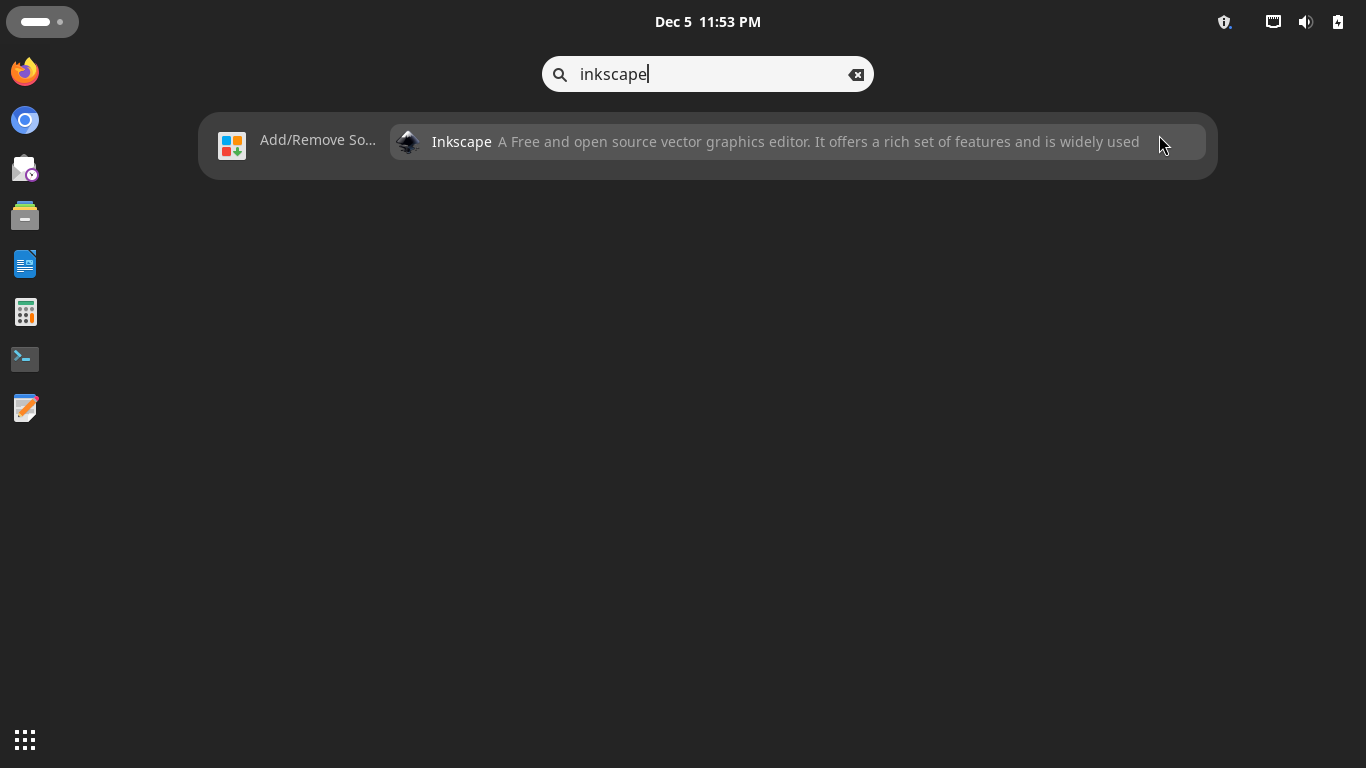
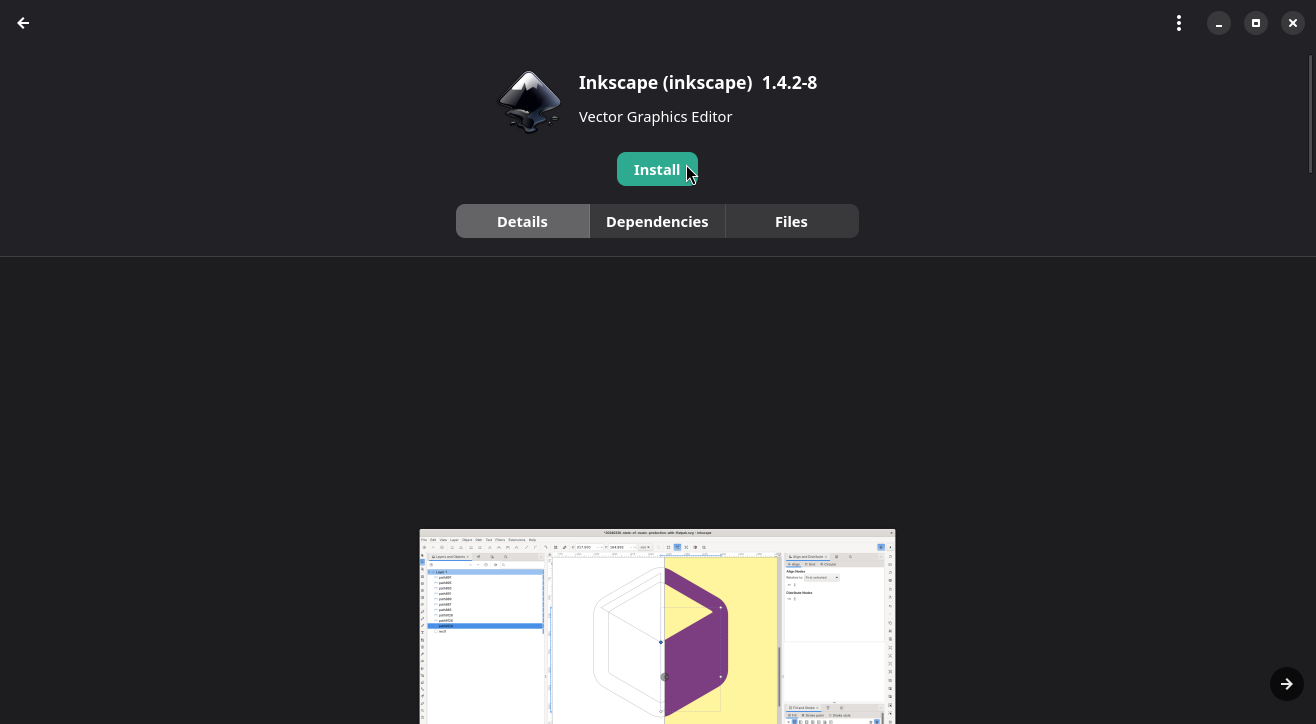
Pro Tip: what about an even shorter way to install apps? Next time, try opening the apps list and searching for the app you haven’t installed yet but want to. The desktop itself will suggest it. Just click the desired app to open the Pamac package manager with all the information about it.
I’m going to use another application that does not come out-of-the-box on Linux Kamarada as an example: Inkscape. In case you didn’t know it yet, Inkscape is also a free and open-source image editor, but it works with a different kind of image: vector graphics. GIMP compares to Photoshop as well as Inkscape compares to CorelDRAW.
Look at this:
In upcoming articles, we’ll explore other ways you can install software on Manjaro. Follow us on social media so you don’t miss them!
Continue reading here: