Linux Kamarada
We’ve seen how to install software on Manjaro using the Pamac graphical interface, but it also has a command-line interface. Therefore, you can install programs on Manjaro using the terminal and the pamac command, either because you prefer to use the terminal, or a graphical interface isn’t available (e.g. you’re maintaining a server or your desktop system is broken).
On Linux Kamarada, you can easily launch the terminal; it’s one of the apps pinned to the dock (more precisely, the app called Console):

In this article, I’m going to assume you know how to use the terminal.
For instance, I’ll show you how you could use pamac to install Telegram. In case you don’t know it yet, Telegram is a messaging app available for computers, smartphones, and tablets. It’s WhatsApp’s closest competitor in terms of features and popularity. Just like in the previous tutorial, here Telegram is also just an example; you don’t need to actually install it if you won’t use it.
To search for an app or package, you can use the pamac search command. For example, to search the repositories for packages containing the word telegram:
1
$ pamac search telegram
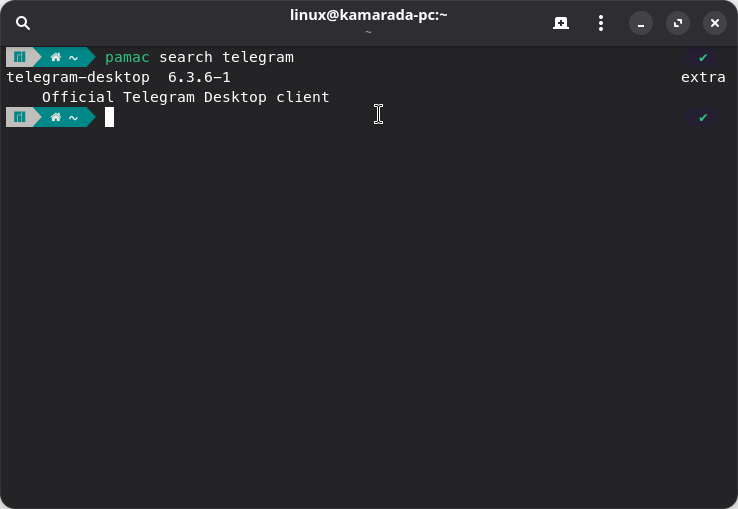
After identifying the packages you want to install, you can install them using the pamac install command. In this example, we see that the Telegram app is provided on Manjaro by the telegram-desktop package. To install it, we can use:
1
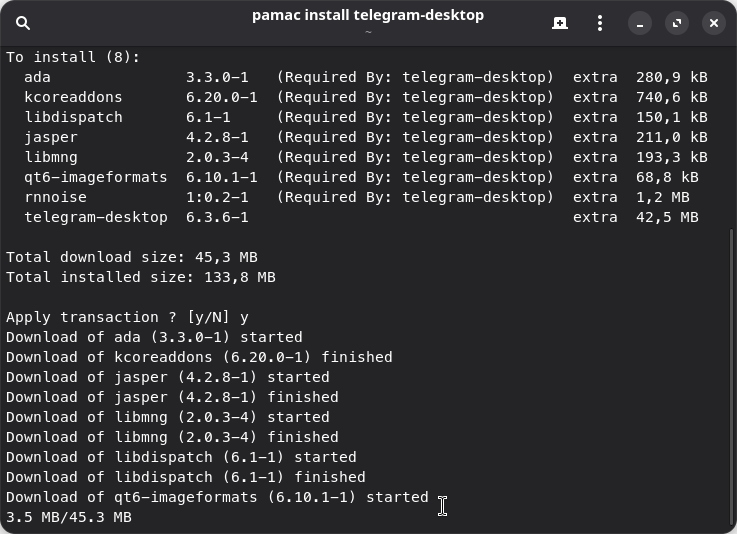
$ pamac install telegram-desktop
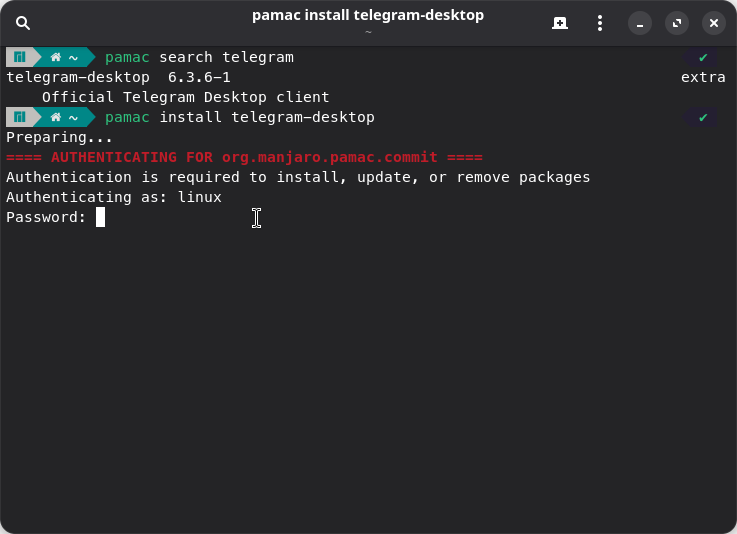
Note that the recommendation is to run pamac as a regular user, without sudo. pamac requests elevated privileges only when needed.
To search for packages, pamac did not ask for a password, but it is now asking to install packages. Enter your password and press Enter to continue.
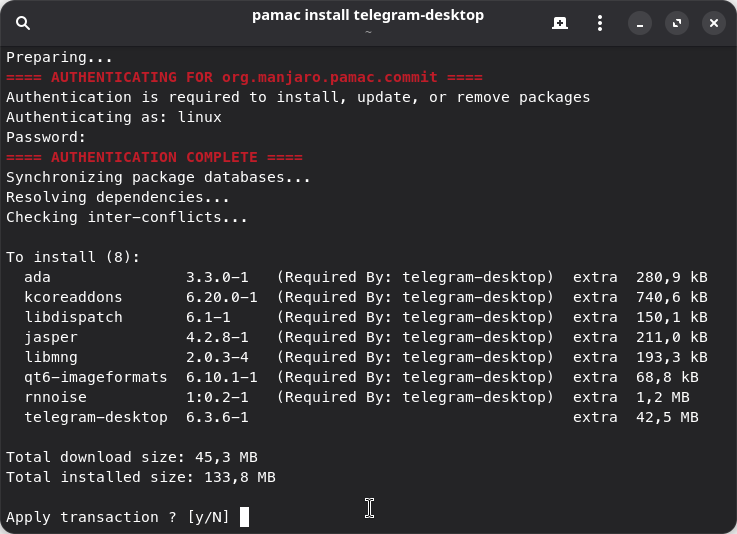
To confirm the installation, type y and then hit Enter.
pamac starts to download and install the packages, which may take more or less time depending on the speed of your Internet connection and your computer:
pamac will tell you when the installation is complete:
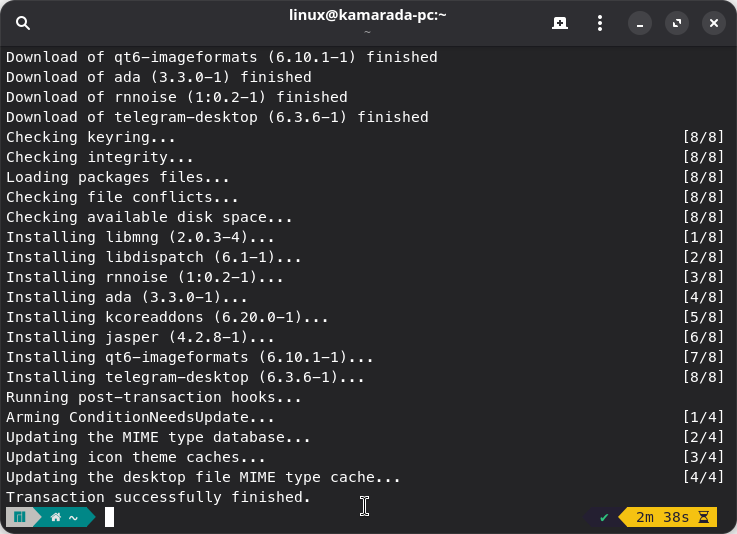
Done: now you can use the program you just installed.