Linux Kamarada
Have you ever tried using two Bluetooth speakers at the same time on Linux? The sound only comes out of one of them, without using anything beyond what comes “out of the box” with the system. But if the system uses PipeWire as the sound server, as is the case with Manjaro and the new Linux Kamarada, you can use a patchbay app to make the same sound come out of both speakers.
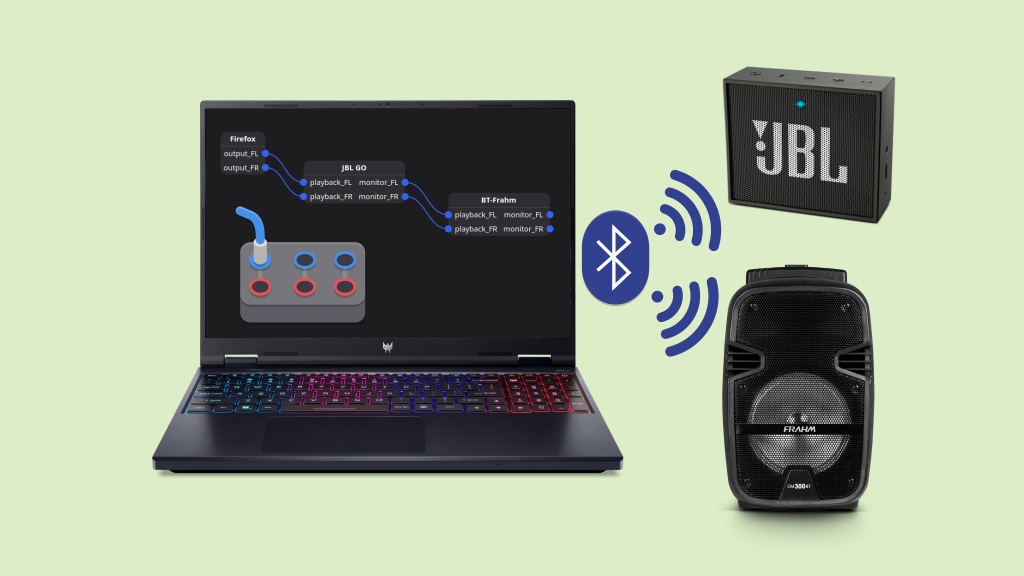
A patchbay in real life is used to connect musical instruments and sound equipment. A patchbay app allows you to connect applications and devices for sound playback and recording.
Recently, I threw a party and used two Bluetooth speakers of mine, a JBL GO (indoors) and a Frahm CM 300 BT (outdoors), to play music from my laptop. Below, I’m going to show you how I did that.
The PipeWire sound server
Before we begin, let me introduce PipeWire. Perhaps, like me, you’ve heard of ALSA, PulseAudio or JACK already, but not PipeWire.
PipeWire is a sound server developed to greatly improve handling of audio and video under Linux, with support for newer technologies such as Wayland and Flatpak. It is designed for low-latency audio and video routing and processing, and is capable of connecting multiple multimedia streams to multiple clients.
Fedora Magazine presents a bit of the PipeWire history, which helps us understand exactly where it fits into Linux:
The evolution of the Linux sound subsystem happened in layers. The lowest layer is the hardware layer with various audio devices. To interact with hardware drivers, Linux has a standardized API called Advanced Linux Sound Architecture (ALSA). Another layer above ALSA, a sound server, should handle interactions with userspace applications. Initially, that layer was Pulseaudio and Jack, but it was recently replaced by Pipewire.
PipeWire offers built-in seamless support for PulseAudio, JACK and ALSA applications, so they continue to work whether you are using those technologies or PipeWire.
How do I know if my sound server is PipeWire?
To confirm that you are using PipeWire as your sound server, open the terminal and run the following command:
1
$ inxi -A
Its output should mention PipeWire (Server-1: PipeWire):
1
2
3
4
5
6
Audio:
  Device-1: Intel Raptor Lake High Definition Audio
    driver: sof-audio-pci-intel-tgl
  Device-2: NVIDIA AD106M High Definition Audio driver: snd_hda_intel
  API: ALSA v: k6.16.8-1-MANJARO status: kernel-api
  Server-1: PipeWire v: 1.4.8 status: active
Another command you can use to test if PipeWire is being used:
1
$ pactl info
You should see something like Server Name: PulseAudio (on PipeWire 1.4.8) on its output:
1
2
3
4
5
6
7
8
9
10
11
12
13
14
15
Server String: /run/user/1000/pulse/native
Library Protocol Version: 35
Server Protocol Version: 35
Is Local: yes
Client Index: 94
Tile Size: 65472
User Name: linux
Host Name: kamarada-pc
Server Name: PulseAudio (on PipeWire 1.4.8)
Server Version: 15.0.0
Default Sample Specification: float32le 2ch 48000Hz
Default Channel Map: front-left,front-right
Default Sink: alsa_output.pci-0000_00_1f.3-platform-skl_hda_dsp_generic.HiFi__Speaker__sink
Default Source: alsa_input.pci-0000_00_1f.3-platform-skl_hda_dsp_generic.HiFi__Mic2__source
Cookie: 8d7d:2813
Pairing the two speakers
Now that PipeWire has been introduced, let’s look at the problem that motivates this tutorial.
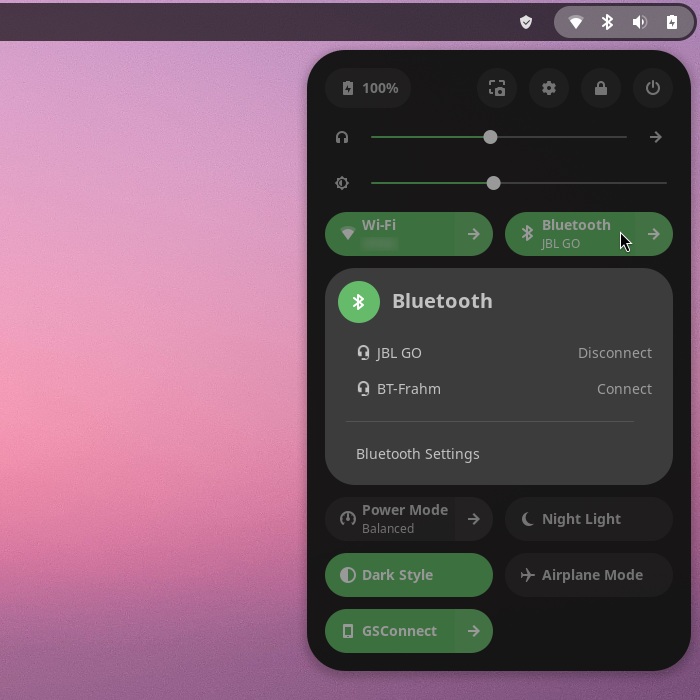
Connect the first speaker and set it as the sound output, just as you would normally do when pairing a Bluetooth speaker:
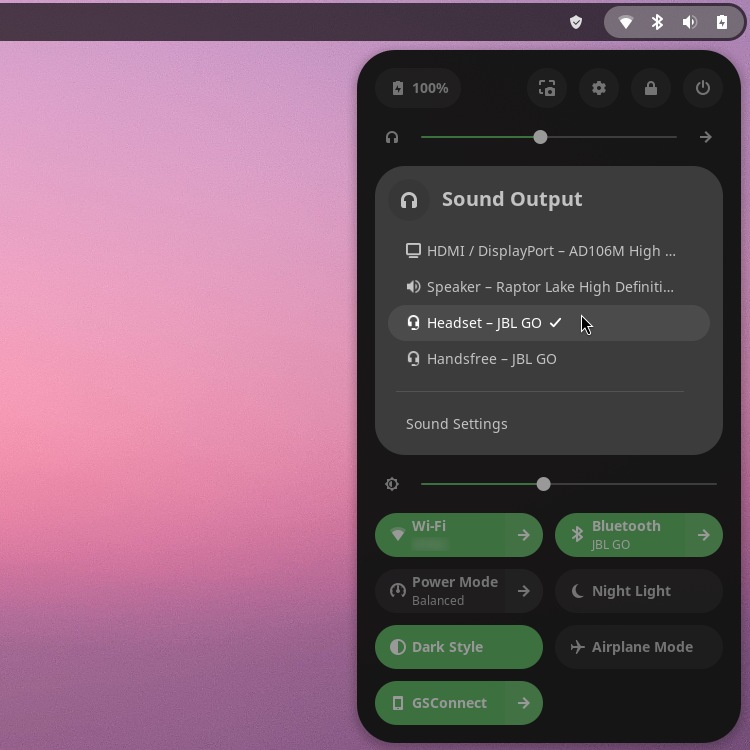
Make sure sound is coming out of that speaker.
To do this, you can, for example, open your browser and play a song on YouTube. If you want suggestions, I like to test sound with Moro No Brasil by the Brazilian band Farofa Carioca or San Disco Reggaefornia by Jason Mraz. These are songs with noticeable percussion, highs and lows.
With the first speaker already working, connect the second one:
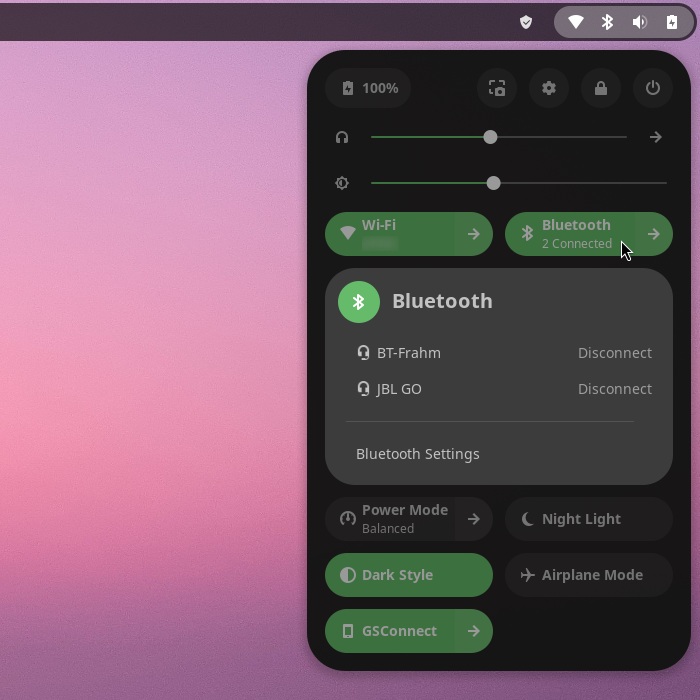
Note that the sound continues to come out only on the first one. We’ll fix that shortly.
Combining the sound of the speakers
To make the sound from the first speaker also come out of the second speaker, we’ll use a patchbay app for PipeWire. Options include qpwgraph (Qt-based) and Helvum (GTK-based). Since Linux Kamarada uses the GNOME desktop, I prefer to use Helvum, although the other app should work fine as well.
To install Helvum on Manjaro or Linux Kamarada, install the helvum package from the official Manjaro repositories. This can be done with:
1
$ pamac install helvum
If you need help installing programs on Manjaro, please refer to:
- Manjaro: how to install apps using the Pamac package manager
- Manjaro: how to install software from the terminal with the pamac command
After installing Helvum, launch it:
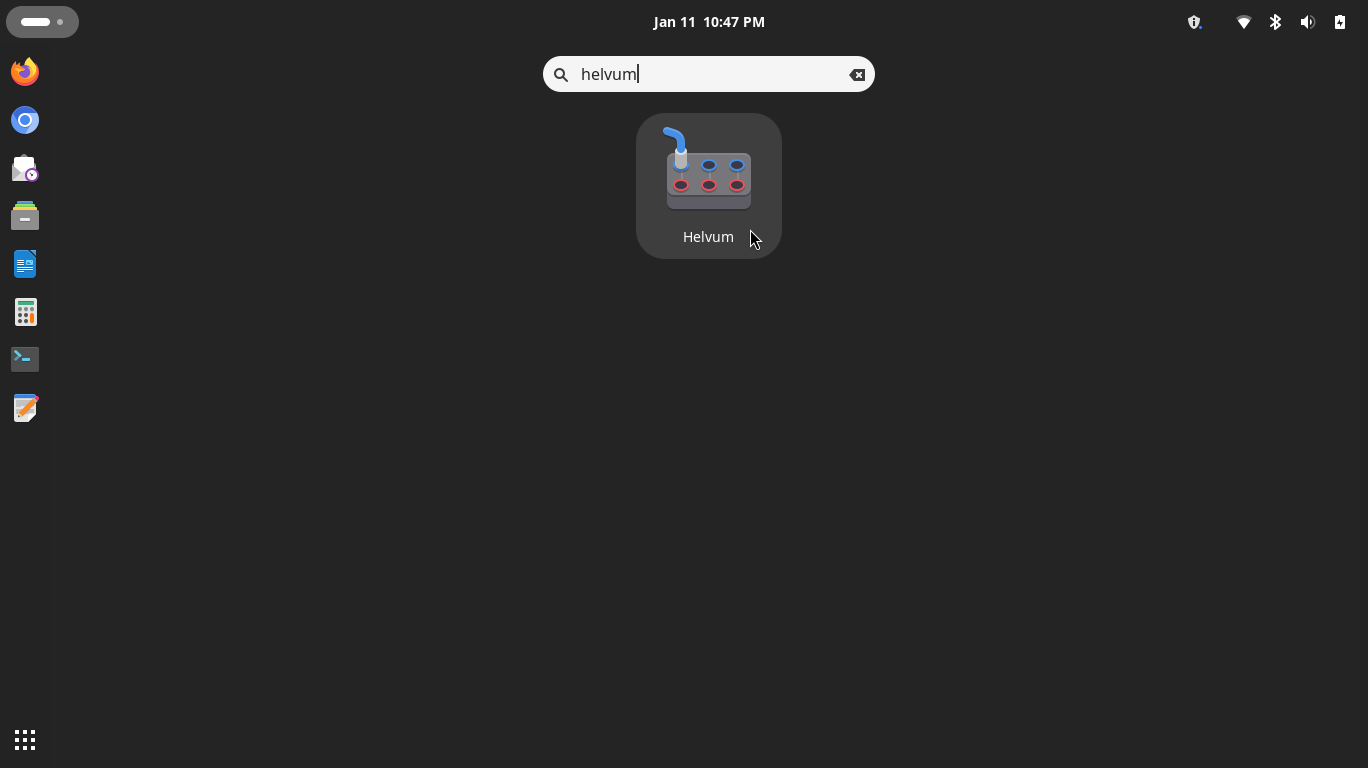
This is the Helvum screen, showing which connections are made between apps and devices for both audio output and input:
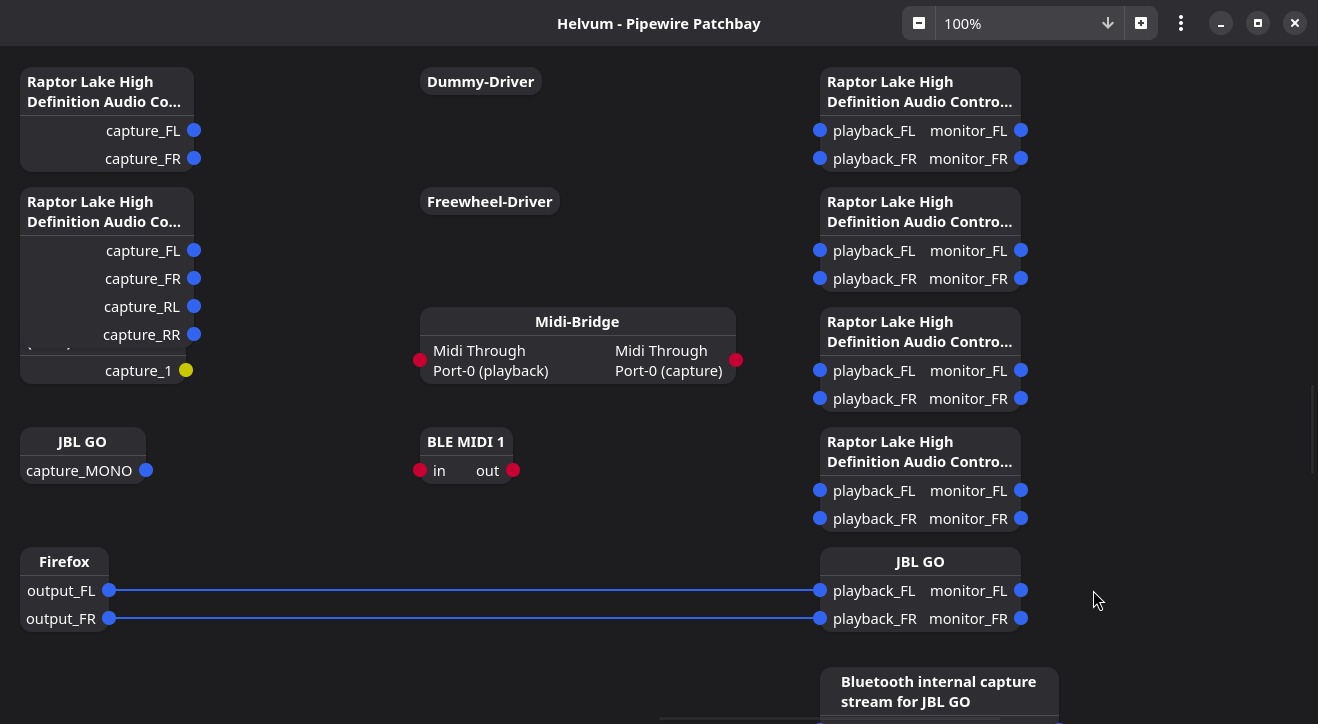
In this example, we can see that the Firefox browser’s audio outputs (output_FL and output_FR) are connected to the JBL GO speaker’s audio inputs (playback_FL and playback_FR) and sending sound to be played. Try pausing the music in the browser and you’ll see this line become dashed, indicating that the connection exists but is not sending sound.
It’s possible that not all devices and apps will fit on the screen. In that case, you can scroll up or down, or zoom out so that more items fit on the screen:
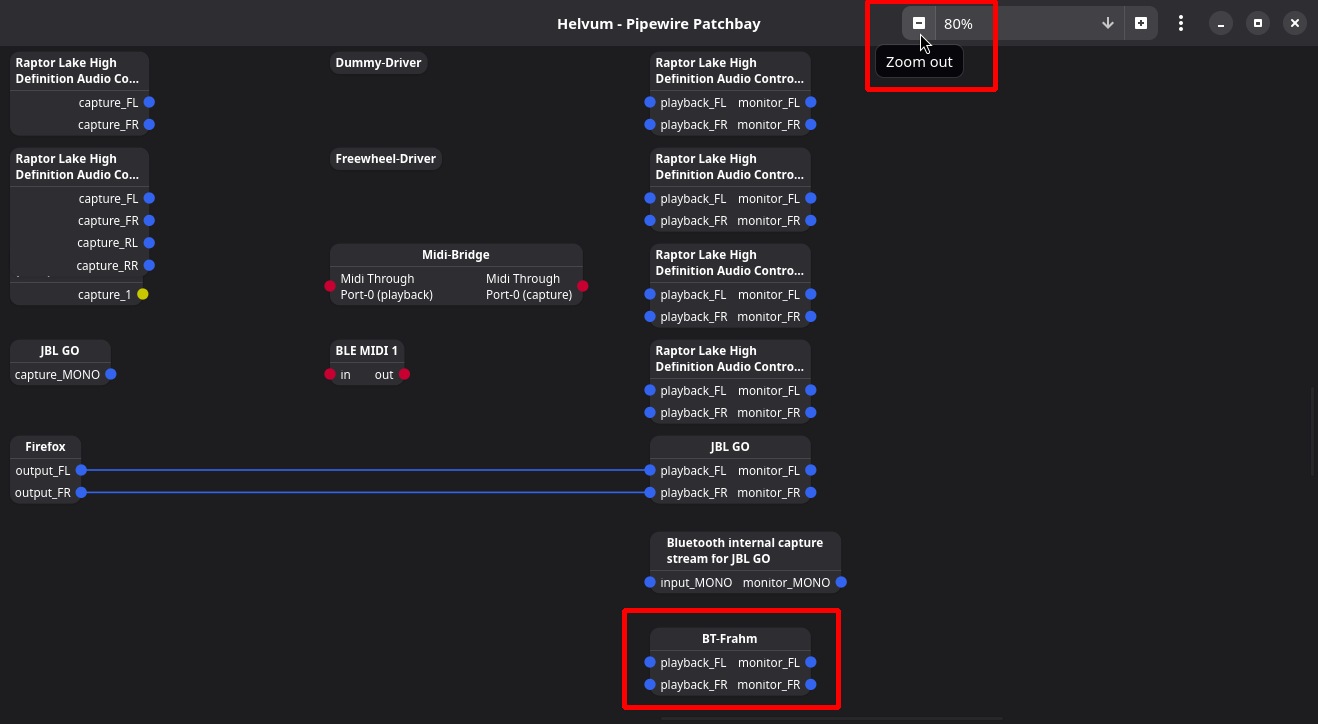
Now it is possible to see the second speaker (BT-Frahm).
To make the JBL GO and BT-Frahm speakers play the same sound simultaneously, connect the sound outputs of the first (monitor_FL and monitor_FR) to the sound inputs of the second (playback_FL and playback_FR). To do this, you can drag one to the other and the app will draw the line:
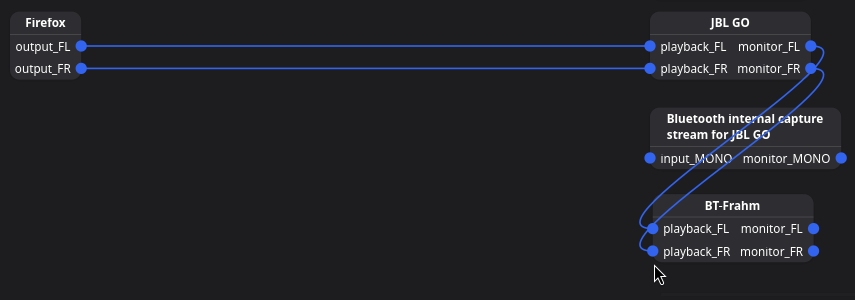
Note that now the same sound comes out of both speakers at the same time.
You can drag and drop apps and devices on the screen and rearrange them as you prefer to improve your view:

Controlling the volume of the speakers
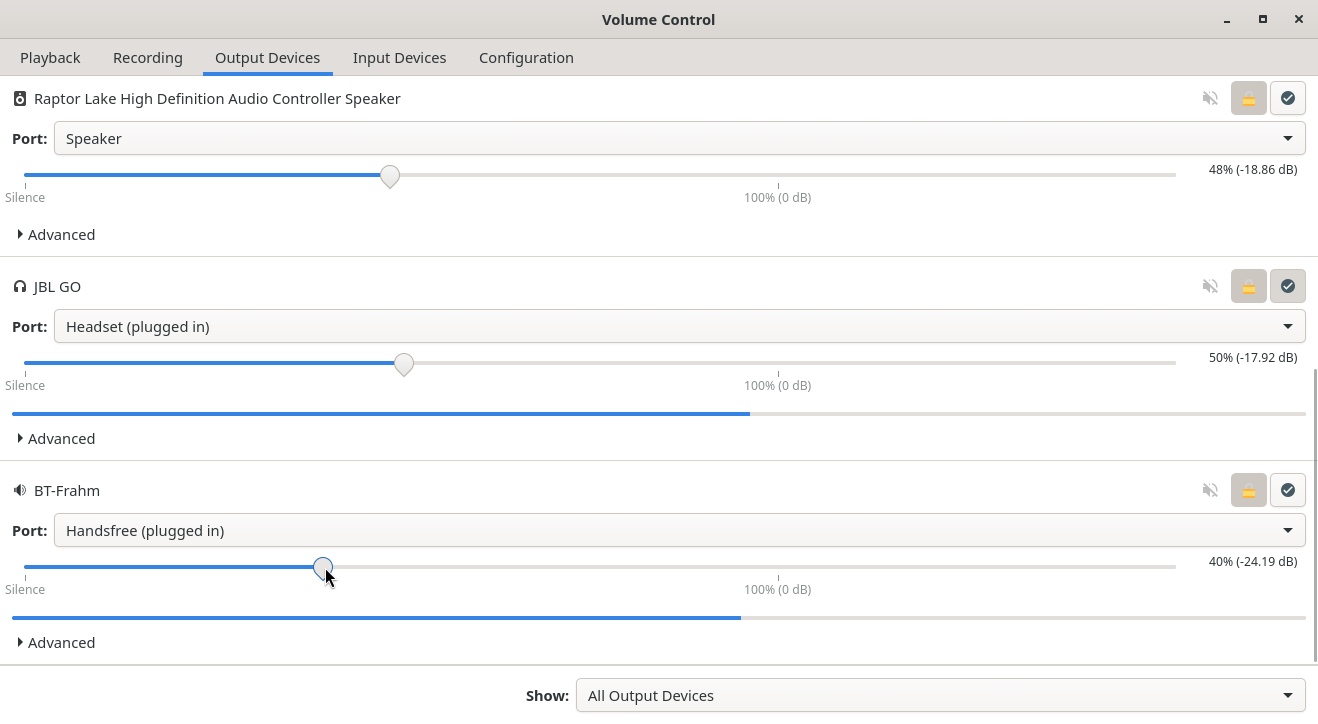
You may have noticed that the desktop volume control only affects the volume of the first speaker. To adjust the volume of both speakers, we’ll use another app, which is PulseAudio’s Volume Control. To install it, install the pavucontrol package:
1
$ pamac install pavucontrol
After installing Volume Control, launch it:
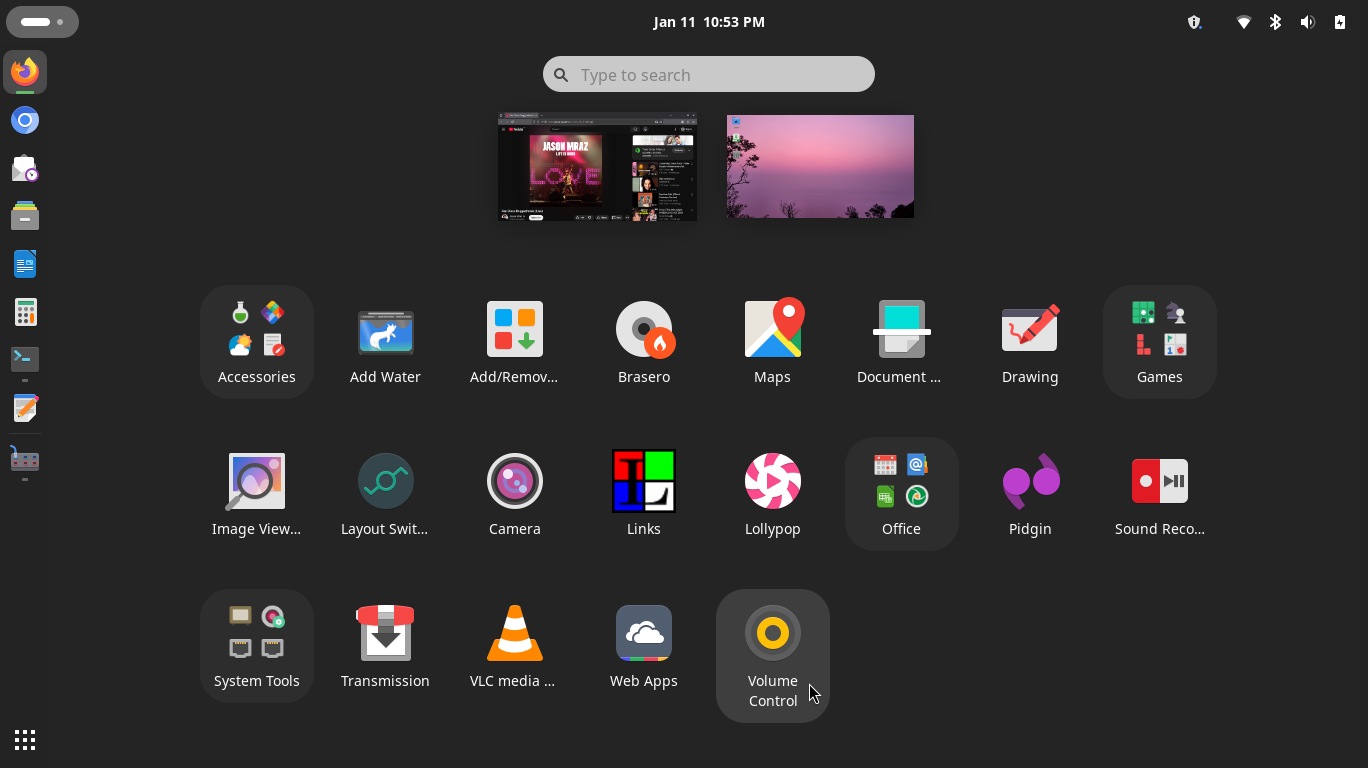
Switch to the Output Devices tab and adjust the volume of each speaker as desired:
Conclusion
When I had the idea of using two Bluetooth speakers at the same time and searched to see if it was possible, I couldn’t find any up-to-date how-tos. What saved me was Google’s AI Overview. Therefore, I decided to write this tutorial sharing how I did it. If you have any questions, suggestions on how to do it better, tips to add, or ideas for a future tutorial, please write in the comments. I hope it was helpful. See you!