Linux Kamarada
Nautilus (the default file manager of the GNOME desktop, also known as Files) has a little-known but extremely useful feature: the ability to add custom scripts to its context menu. With them, you can turn repetitive tasks – such as opening a folder in a code editor, compressing files, batch renaming, sending files to another program, converting formats, and many others – into a simple right-click of the mouse.
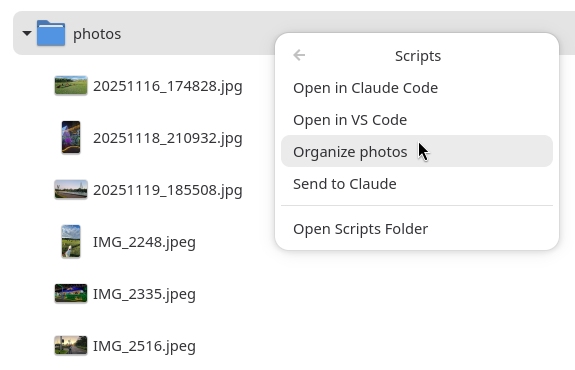
In practice, any executable (shell script, Python, Perl, etc.) placed in a specific system folder automatically shows up in the Scripts submenu of Nautilus’s context menu, receiving information about the selected files or folders through environment variables. This lets you extend the file manager’s functionality without having to write a full extension (in C or Python, using the official Nautilus API), requiring only basic shell script knowledge.
I became aware of this feature when Claude Desktop created the Open in Claude Code and Send to Claude scripts in the proper folder, and those options started showing up for me in Nautilus’s context menu. That led me to investigate how this mechanism worked and, from there, to write my own scripts.
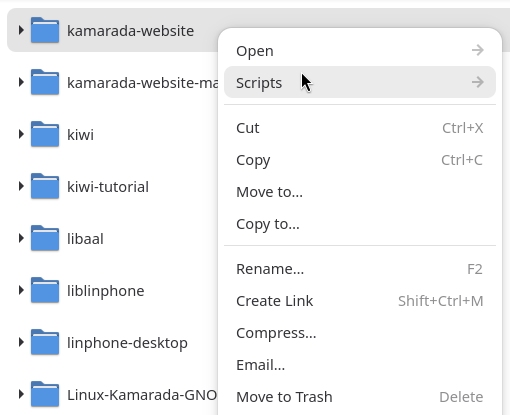
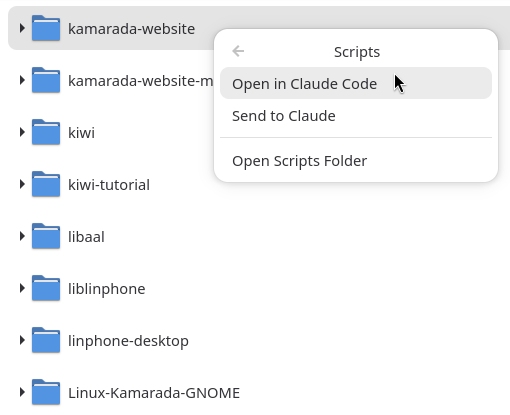
Since when does Nautilus support scripts?
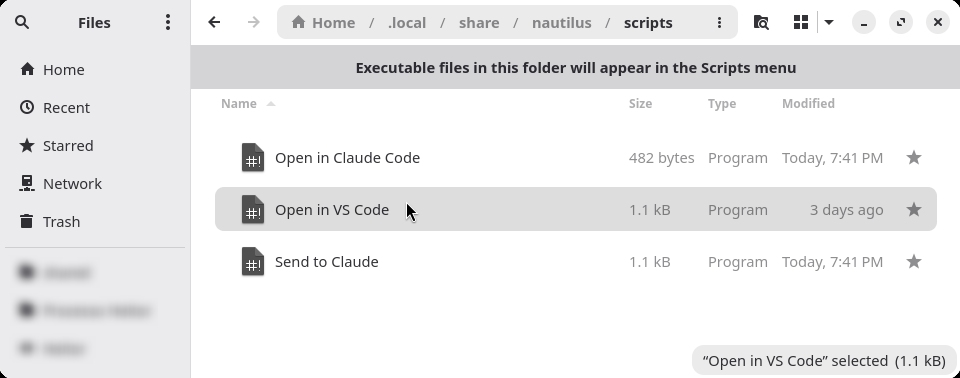
This feature is quite old. It has existed since the earliest versions of Nautilus, back in the early 2000s. At the time, the scripts folder was ~/.gnome2/nautilus-scripts. With the adoption of the XDG Base Directory standard, the path migrated to its current location, ~/.local/share/nautilus/scripts, a change made in Nautilus’s code around 2010, targeting GNOME 3.0. The mechanism itself – any executable in that folder automatically showing up in the Scripts submenu – remains practically unchanged in current versions of Nautilus.
What you need to know to write one of these scripts
You don’t need advanced programming knowledge to create a Nautilus script. The essentials are:
- Folder location: the script must be saved in
~/.local/share/nautilus/scripts/. Subfolders inside this directory are also supported and appear as submenus. - Environment variables: Nautilus doesn’t pass traditional command-line arguments — instead, it exports environment variables with information about the current selection. The main ones are:
NAUTILUS_SCRIPT_SELECTED_FILE_PATHS— absolute paths of the selected files/folders (one per line), only for local items.NAUTILUS_SCRIPT_SELECTED_URIS— URIs of the selected items (one per line), including remote items (for example,sftp://).NAUTILUS_SCRIPT_CURRENT_URI— URI of the folder currently open in Nautilus.NAUTILUS_SCRIPT_WINDOW_GEOMETRY— position and size of the Nautilus window.
- Shebang and execute permission: like any Unix script, you need to declare the interpreter on the first line (
#!/bin/sh,#!/usr/bin/env python3, etc.) and mark the file as executable (chmod +x). - Watch out for multiple selections and remote paths: a robust script should handle the case of no selection, multiple selection, and non-local URIs, avoiding unexpected behavior.
Example script: Open in VS Code
As an example, here’s the script I created to open the selected folder (or the current folder, if nothing is selected) directly in VS Code:
1
2
3
4
5
6
7
8
9
10
11
12
13
14
15
16
17
18
19
20
21
22
23
24
25
26
27
28
29
30
31
#!/bin/sh
# Bail out silently if the VS Code CLI isn't installed.
[ -x '/usr/bin/code' ] || exit 0

nl='
'
# Nautilus passes multiple selected items separated by newlines in
# NAUTILUS_SCRIPT_SELECTED_URIS/FILE_PATHS. We only support a single
# selected folder, so if more than one item is selected ($nl followed by
# another char), treat the selection as empty and fall back below.
case "$NAUTILUS_SCRIPT_SELECTED_URIS" in *"$nl"?*) sel="" ;; *) sel="${NAUTILUS_SCRIPT_SELECTED_FILE_PATHS%"$nl"}" ;; esac

# If exactly one folder is selected, use it; otherwise fall back to the
# folder currently open in Nautilus (only when it's a local path).
if [ -n "$sel" ] && [ -d "$sel" ]; then
  dir="$sel"
else
  case "$NAUTILUS_SCRIPT_CURRENT_URI" in
    file://*) dir="$PWD" ;;
    *) exit 0 ;; # not a local folder (e.g. network location), nothing to open
  esac
fi

# Safety check: make sure we ended up with an absolute path before using it.
case "$dir" in
  /*) ;;
  *) exit 0 ;;
esac

# Replace this script process with VS Code, opening the target folder.
exec '/usr/bin/code' "$dir"
In short, this script:
- Checks whether the VS Code executable (
/usr/bin/code) exists; if not, it exits without doing anything. - Determines whether exactly one folder is selected in Nautilus; if not, it uses the folder currently open (as long as it’s a local path).
- Validates that the resulting path is absolute, for safety.
- Replaces the script process with the VS Code process (exec), opening the target folder.
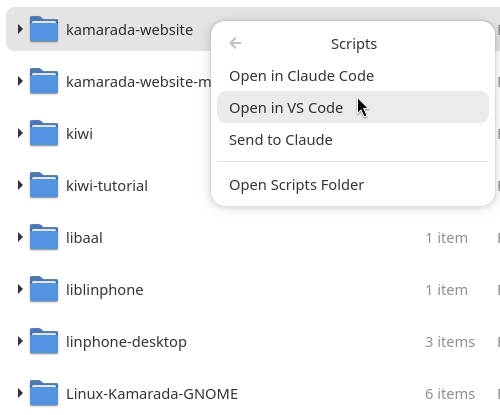
Just save this content to a file named Open in VS Code inside ~/.local/share/nautilus/scripts/, make it executable (chmod +x "Open in VS Code"), and the option will show up in the context menu when you right-click a folder.
One more example: Organize photos
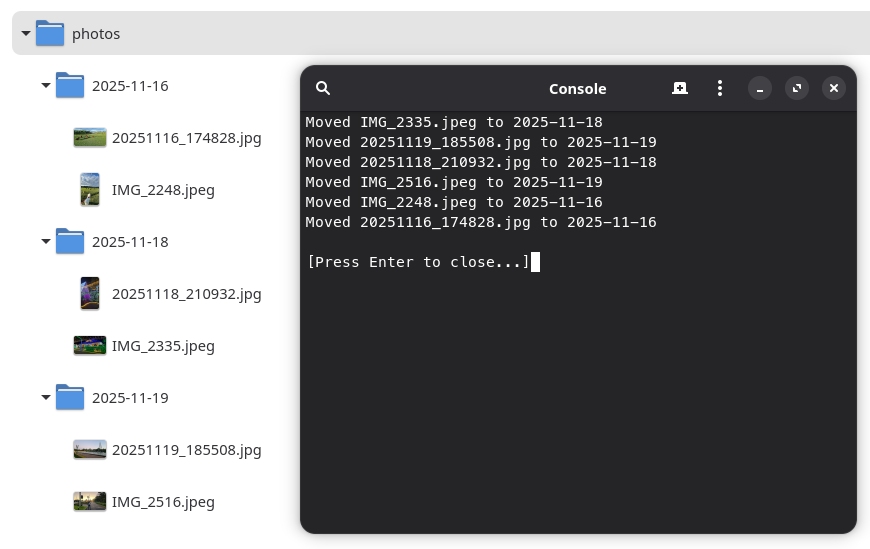
On my personal blog, I shared a Python script I wrote with help from GitHub Copilot to organize photos into folders by date. It then occurred to me: what if I used the knowledge I just learned to integrate that script into Nautilus?
1
2
3
4
5
6
7
8
9
10
11
12
13
14
15
16
17
18
19
20
21
22
23
24
25
26
27
28
29
30
31
32
33
34
35
36
37
38
39
#!/bin/sh
# Bail out silently if the group-photos script or GNOME Console isn't installed.
[ -x "$HOME/bin/group-photos" ] || exit 0
[ -x '/usr/bin/kgx' ] || exit 0

nl='
'
# Nautilus passes multiple selected items separated by newlines in
# NAUTILUS_SCRIPT_SELECTED_URIS/FILE_PATHS. We only support a single
# selected folder, so if more than one item is selected ($nl followed by
# another char), treat the selection as empty and fall back below.
case "$NAUTILUS_SCRIPT_SELECTED_URIS" in *"$nl"?*) sel="" ;; *) sel="${NAUTILUS_SCRIPT_SELECTED_FILE_PATHS%"$nl"}" ;; esac

# If exactly one folder is selected, use it; otherwise fall back to the
# folder currently open in Nautilus (only when it's a local path).
if [ -n "$sel" ] && [ -d "$sel" ]; then
  dir="$sel"
else
  case "$NAUTILUS_SCRIPT_CURRENT_URI" in
    file://*) dir="$PWD" ;;
    *) exit 0 ;; # not a local folder (e.g. network location), nothing to open
  esac
fi

# Safety check: make sure we ended up with an absolute path before using it.
case "$dir" in
  /*) ;;
  *) exit 0 ;;
esac

# Open a new GNOME Console window running group-photos on the target
# folder. Unlike xterm's "-hold", kgx has no built-in flag to keep the
# window open after the command finishes, so we wrap it in a shell that
# waits for a keypress at the end, letting the user read the output.
exec /usr/bin/kgx --working-directory="$dir" -- sh -c '
  "$1"/group-photos "$2"
  printf "\n[Press Enter to close...]"
  read _ignore
' sh "$HOME/bin" "$dir"
Where to find more information
If you’d like to read more about Nautilus scripts – since the GNOME Project doesn’t maintain an official, up-to-date documentation about this feature – the most reliable references currently available are:
- Nautilus scripts - Ubuntu Wiki
- Integrating scripts in Nautilus to perform useful tasks - Fedora Magazine
- How to extend the GNOME Nautilus file manager with custom scripts - LinuxConfig.org
Besides these, the Nautilus source code itself, available on the GNOME Project’s GitLab, is the most authoritative source for anyone who wants to understand exactly which environment variables are exported and how the Scripts submenu is built internally.