Linux Kamarada
One of the strengths of Arch Linux (and derivative distributions such as Manjaro and, by extension, Linux Kamarada) is the Arch User Repository (better known by the acronym AUR). If you have used, or are currently using, any of these distributions, you have probably heard about the AUR: maybe you searched for how to install a specific program and came across someone suggesting to “install it from the AUR.” But what exactly is the AUR, and how do you install software from it?
The AUR is a community-driven software repository for Arch Linux that provides user-produced installation recipes (scripts) for programs. Instead of providing built ready-to-install packages, the AUR provides scripts called PKGBUILD that teach your computer how to locally build and install packages by itself.
This makes it easier to install proprietary software on Arch Linux and its derivatives. For instance, no Linux distribution can provide the Google Chrome package in its repositories because it must be downloaded and installed from its official website. However, the AUR has the google-chrome “package”, which is actually just a PKGBUILD script that teaches your system how to download and install Google Chrome.
Besides proprietary software, the AUR contains thousands of packages that, for one reason or another, are not available in the official Arch Linux repositories, including beta or development versions, lesser-known programs, themes, fonts, utilities, and alternative versions of packages.
The AUR is the gateway for new packages into Arch Linux and its derivatives: many packages that are now in the official repositories were once in the AUR. Arch Linux users can contribute their own PKGBUILD scripts to the AUR, as well as vote for packages in there. If a package becomes popular enough, it may eventually be moved into the distribution’s official repository – provided it has a compatible license and its script is well written.
Warning: we must always remember that the AUR is maintained by the user community, not by the official Arch Linux team. This means that anyone can create or update packages. Although the community usually detects problems quickly, and cases of malicious scripts are relatively rare – making the AUR quite safe in practice – there have already been real security incidents, including recently. Therefore, the ideal approach is to always review the PKGBUILD script before installing or updating packages from the AUR.
For this reason, installing software from the AUR comes disabled by default on Manjaro and Linux Kamarada. However, both enabling the AUR and installing apps from it are easy and can be done using the same Pamac graphical interface or the pamac command that we covered in previous articles.
Enabling AUR support
On Manjaro (and derivative distributions such as Linux Kamarada), AUR support can be enabled through the Pamac package manager graphical interface.
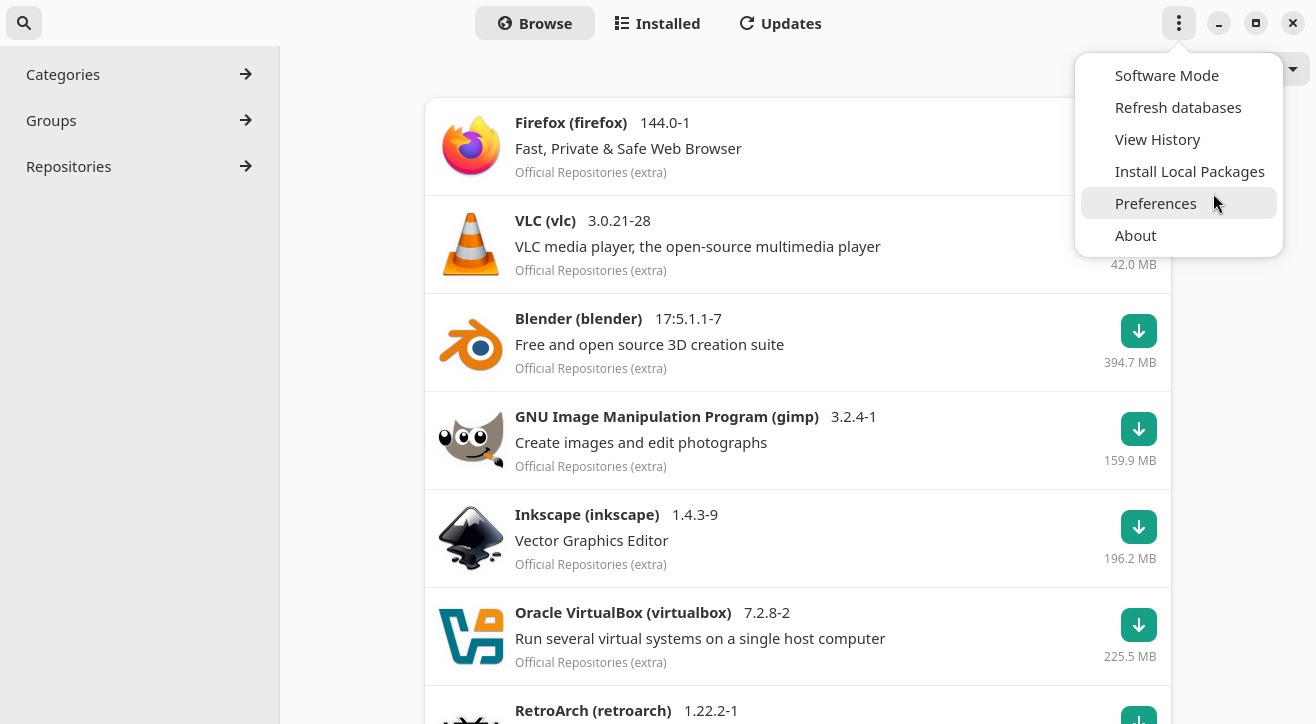
Open Pamac (Add/Remove Software, as shown in the Pamac tutorial), open the menu by clicking the 3 dots in the upper-right corner of the screen, and then click Preferences:
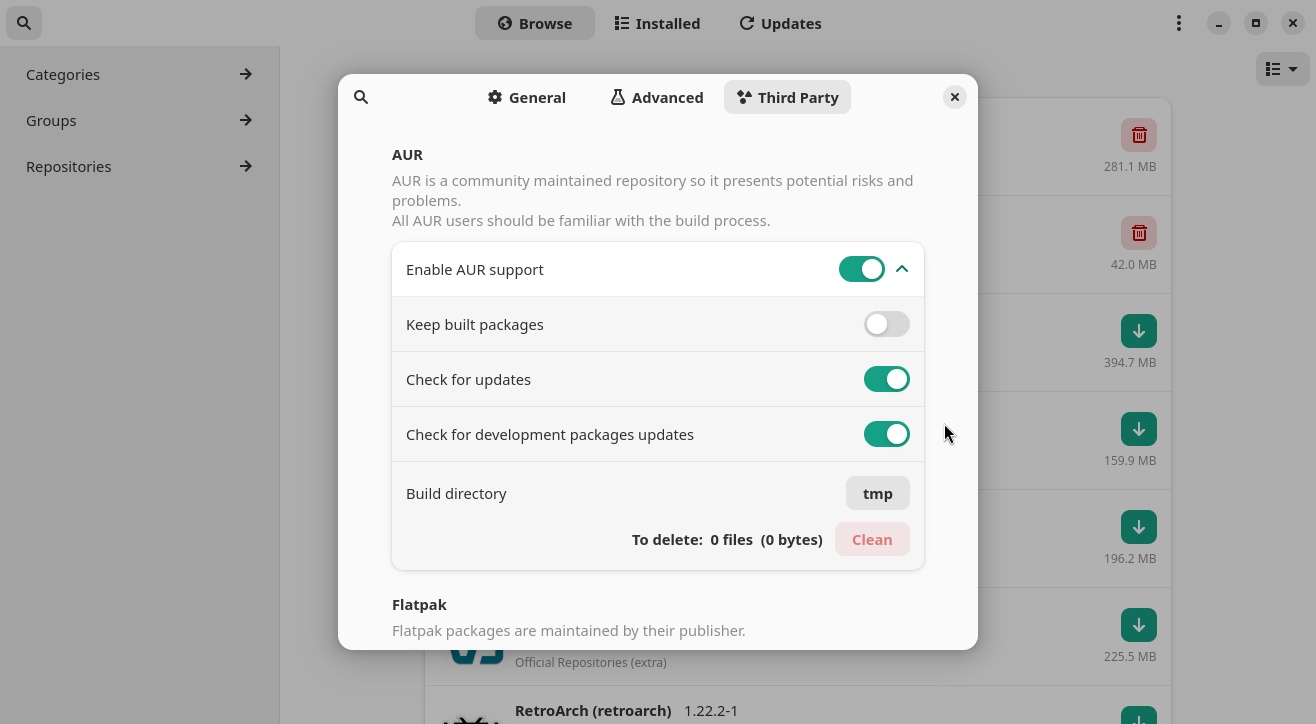
Switch to the Third Party tab and enable the following options:
- Enable AUR support;
- Check for updates; and
- Check for development packages updates.
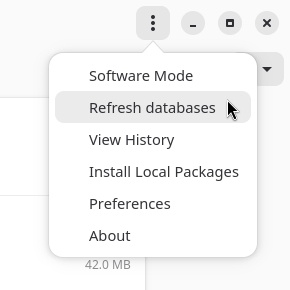
Back to the main Pamac screen, open the menu and click Refresh databases:
Pamac will retrieve the list of packages available in the official Manjaro repositories, as well as the list of “packages” available in the AUR. After that, you will be able to search and install AUR “packages”.
Installing packages from the AUR
Once AUR support has been enabled, installing programs from the AUR can be done in the same way as installing any other program.
In practice, the result is the same: at the end, you will have a working program installed on your computer. The difference, as we have seen, is that packages coming from the AUR will be built on your computer, whereas packages from the official repositories were already built beforehand by the distribution maintainers.
Keep in mind that installing programs from the AUR usually takes longer because of the extra compilation step.
Using the Pamac graphical interface
To demonstrate, I’m going to show how you can use the Pamac graphical interface to install Google Chrome. The world’s most used browser needs no introduction.
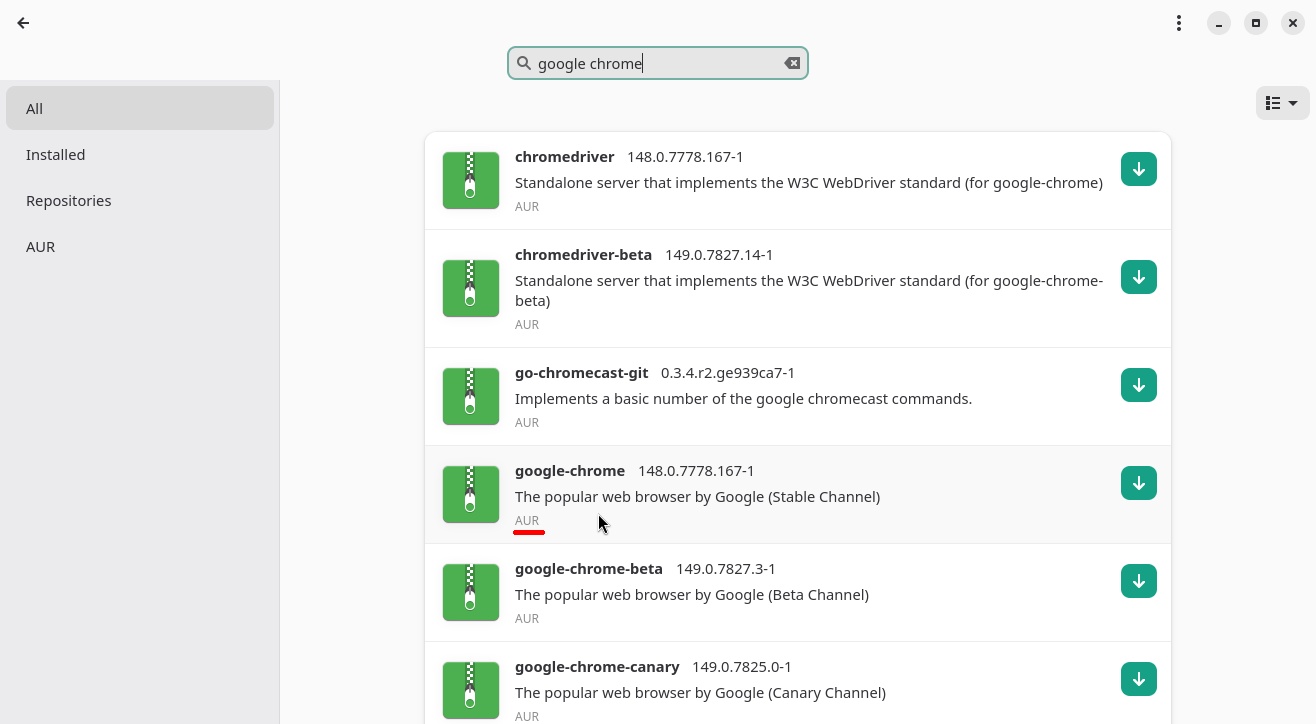
Search for the program you want to install as you normally would. Notice the indicators showing that the package comes from the AUR:
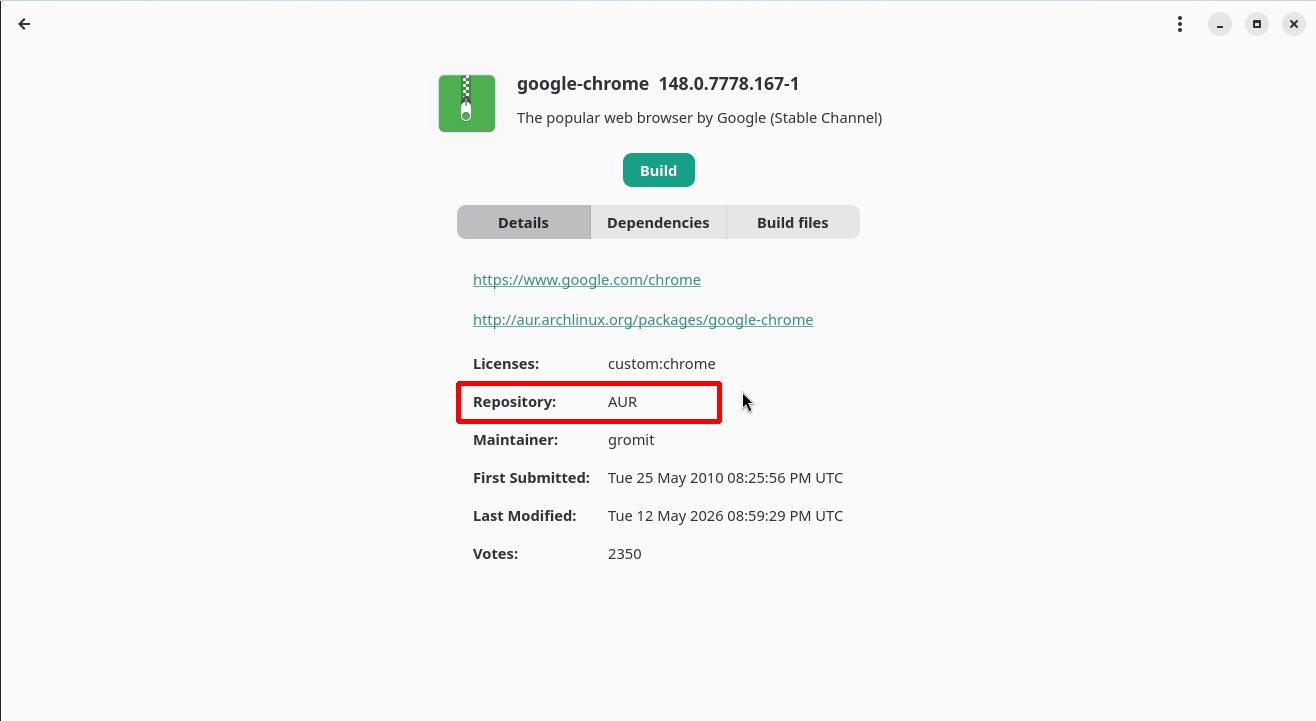
If you want to review the PKGBUILD script before installing, switch to the Build files tab:
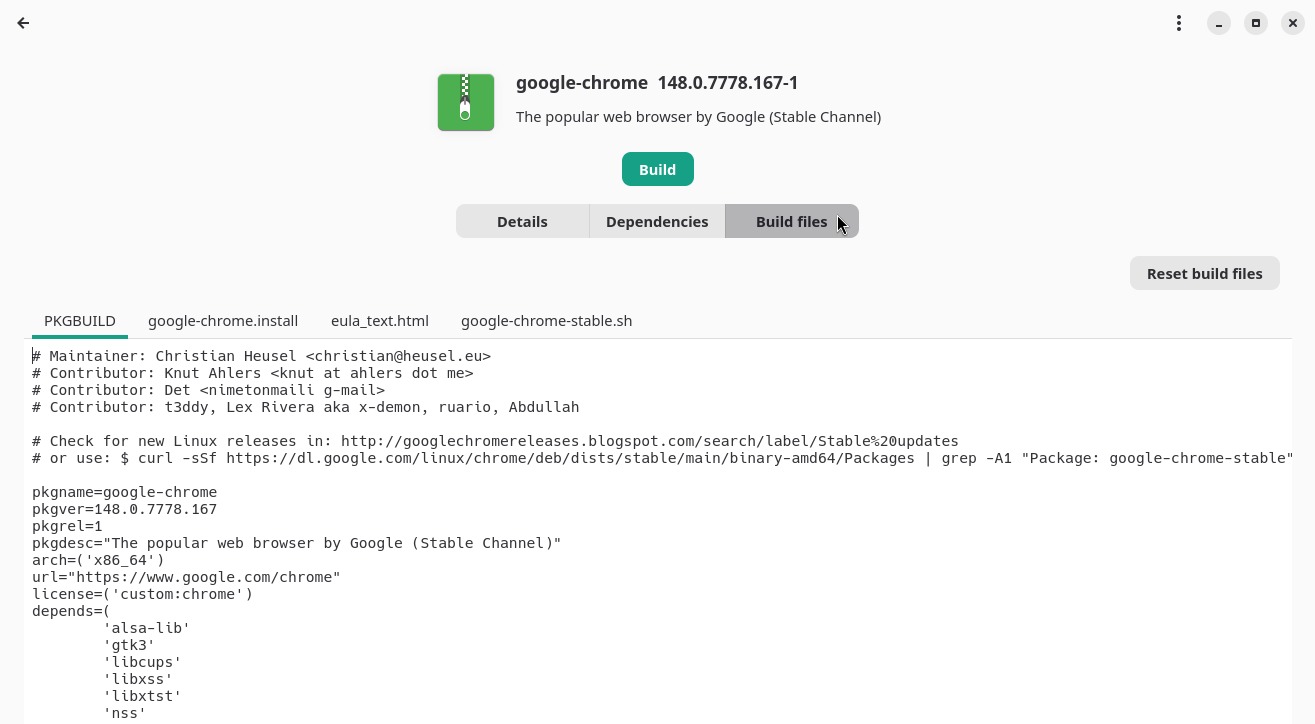
Notice that in the case of AUR packages, there is no Install button, but a Build button instead. To build and install Google Chrome, click Build.
If you want to review or even modify something in the PKGBUILD script before installing, click Edit build files:
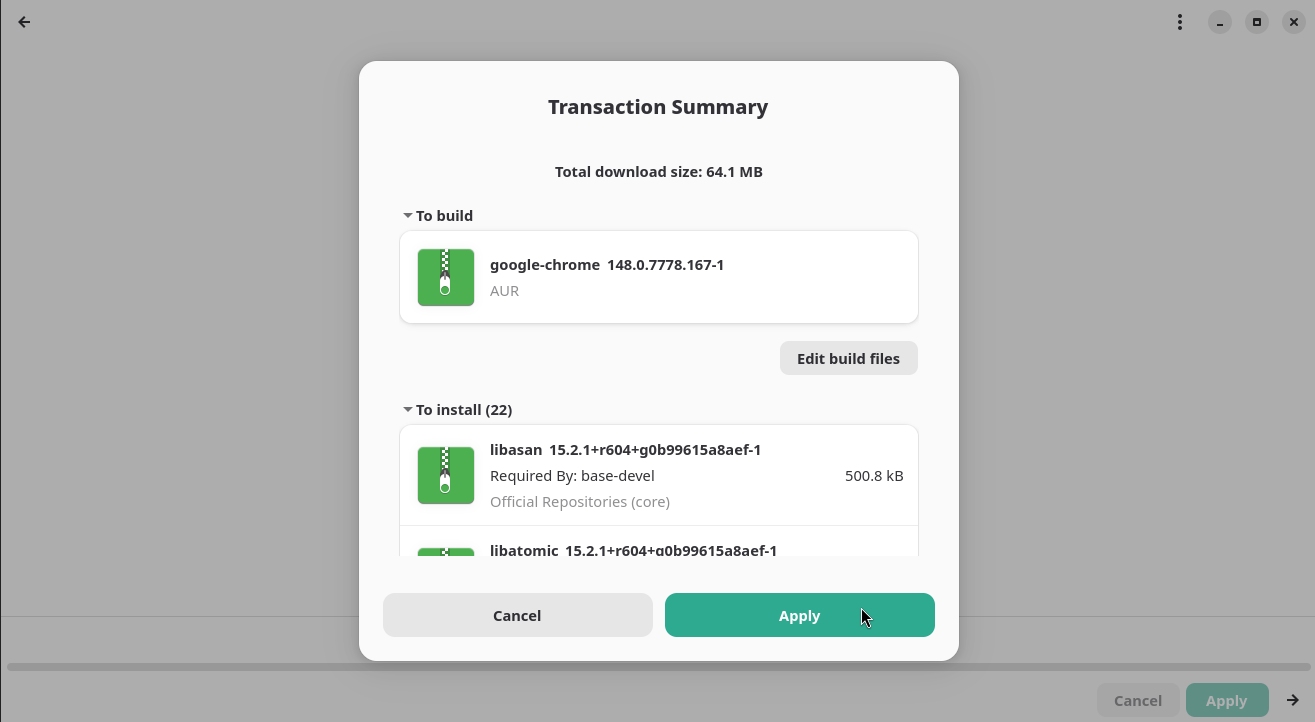
When you are ready to install, click Apply.
Pamac will notify you when the installation is finished and you will be able to launch and use the app you just installed.
Using the pamac command
As an example, I’m going to show how you can use the pamac command to install Dropbox. In case you don’t know it yet, Dropbox is a cloud file storage service. It provides a client application (which is what we are going to install) that creates a folder named Dropbox on your computer and syncs the files in that folder with the files stored in the cloud. Dropbox’s free plan offers 2GB of storage, and if you sign up using my referral link, you get an extra 500MB.
When using the pamac search command, notice that it indicates the package comes from the AUR:
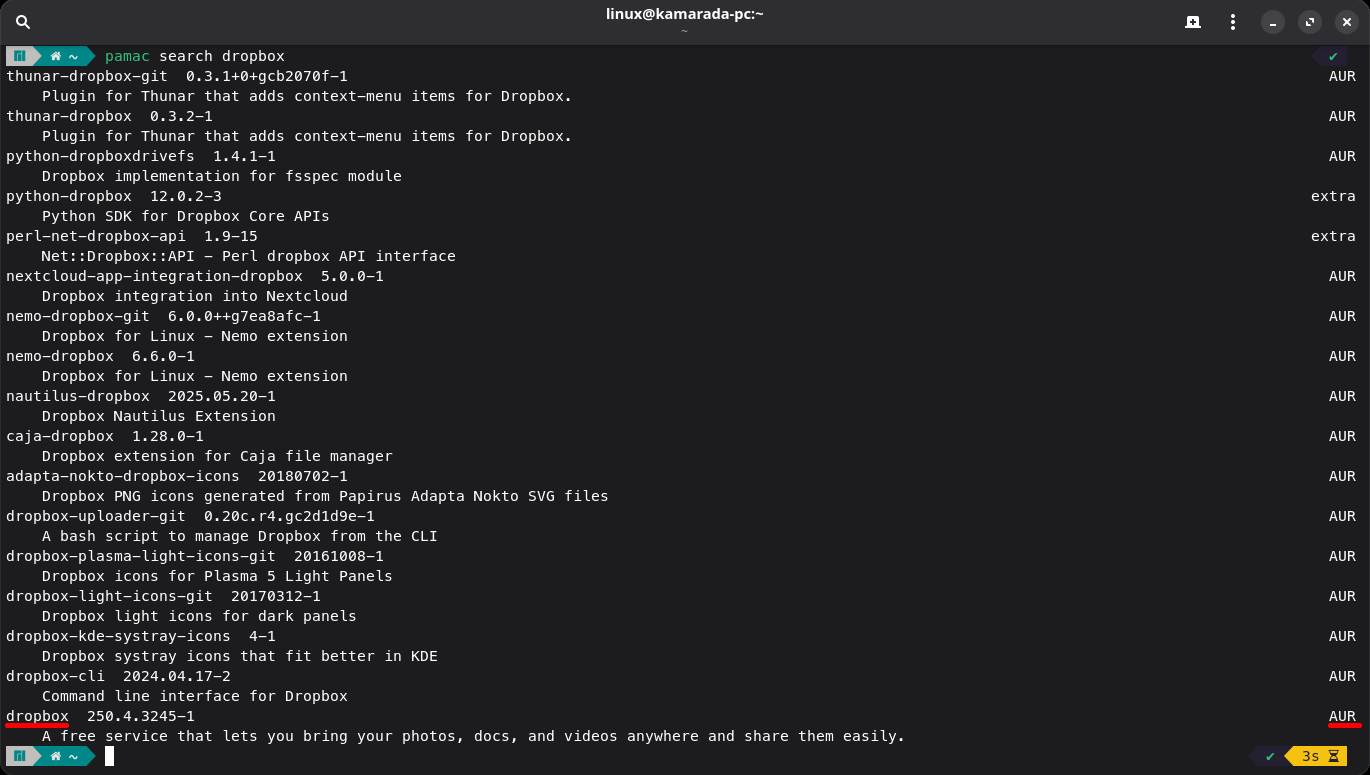
When using the pamac install command, notice another difference when the package comes from the AUR: you can review or even modify something in the PKGBUILD script (the Edit build files option, by pressing e).
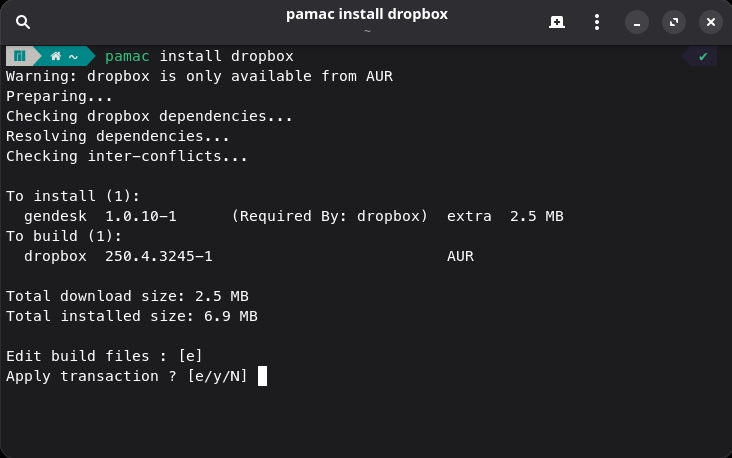
To proceed with the installation as usual, type y and then hit Enter.
The pamac command will tell you when the installation is complete.
Conclusion
The AUR is one of the reasons why I liked Manjaro and moved to it. As you explore the AUR content, you will notice that it contains everything from famous programs (such as Google Chrome and Dropbox, as we just saw) to unlikely ones, such as the Jump ‘n Bump game, and you will understand why the AUR is so popular. It makes life easier for Arch and derivatives users by making it easy to install all kinds of software – including many proprietary ones. If you use Arch Linux (or Manjaro, or Linux Kamarada), you will find that almost everything you need is available either in the official repos or in the AUR. Rarely will you need to resort to Flatpak or other ways of installing software.