Linux Kamarada
Until recently, different Linux distros used different package formats, often incompatible with each other. For example, Debian and Ubuntu use DEB packages; Red Hat, Fedora and openSUSE use RPM packages; Arch Linux, Manjaro and Linux Kamarada use pkg.tar.zst packages. These traditional packaging formats presented some inconveniences for everyone – users, software developers, and distro and package maintainers:
- Duplicated work packaging apps: as developers had to package the same application in different formats for different distributions, it was common to choose just one or a few distributions to support, while ignoring all the others;
- That takes us to the second point, user limited to distributions that have the apps: only a few distributions had a wide range of applications natively packaged and available for easy installation and use, so the distributions that could be considered for everyday use were limited;
- User limited to apps that are packaged already: not all applications are natively available in every Linux distribution, if the user needs a program that is not packaged for their distribution, they will need to download it, and often compile it manually;
- Old and outdated packages: distributions whose lifecycle is organized into versions, which are supported for a long time (LTS, Long Term Support), often have very old versions of applications. This is a problem mainly in distributions like openSUSE Leap or Debian, not so much in distributions with frequent updates (rolling release) like openSUSE Tumbleweed or Arch Linux; and
- Difficulty to support: as each distribution packages applications in a different way, and each distribution has different versions of programs and their dependencies, developers have little control over what is on the user’s computer, making it difficult to troubleshoot bugs (or even to reduce the chance that they will occur, in the first place).
Striving to solve these problems, some alternative package formats emerged, such as Snap, Flatpak and AppImage. Today, we are going to talk about Flatpak.

Flatpak is a distribution-agnostic package manager. It brought a simpler alternative to install programs on different distros: as long as Flatpak is installed on the system, the same Flatpak package can be installed on any distro. A Flatpak package contains not only the application, but also most of the libraries needed to run it. Applications are run by Flatpak in a sandbox environment that isolates applications from one another and from the system, increasing security as a whole.
Flatpak was originally created by Alexander Larsson while working on container technologies at Red Hat. Although it has received many contributions from Red Hat and GNOME developers, Flatpak is not tied to either this distribution or this desktop, having been developed as an independent free software project from the beginning. Formerly called xdg-app, it was first released in March 2015 and then renamed to Flatpak in May 2016. The following month, the competitor Snap, which until then supported Ubuntu only, was ported to other distributions.
Flatpak is currently supported by at least 38 major distributions.
Just as distributions have the concept of repositories, Flatpak also lets you get packages from one or more repositories, the main one being Flathub at flathub.org. In Flatpak terminology, repositories are called remotes, very similarly to Git remotes.
Here’s how to install and configure Flatpak on your system, how to use it to install apps, and other information that may be helpful.
How to install and enable Flatpak
Both Manjaro and the new Manjaro-based Linux Kamarada come with Flatpak already installed out-of-the-box. Flathub is also pre-configured. If you use one of these distros, all you need to do is enable Flatpak support in Pamac, which is similar to enabling AUR support, as discussed in the previous article.
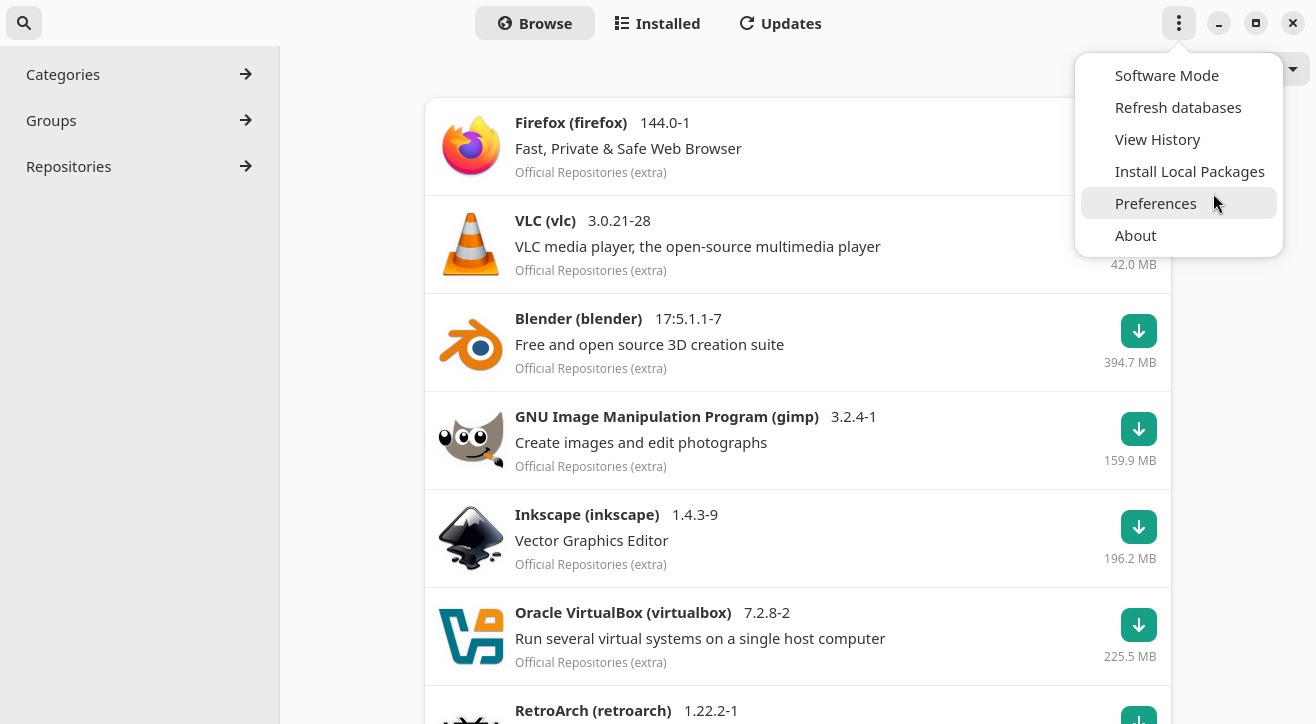
Open Pamac (Add/Remove Software, as shown in the Pamac tutorial), open the menu by clicking the 3 dots in the upper-right corner of the screen, and then click Preferences:
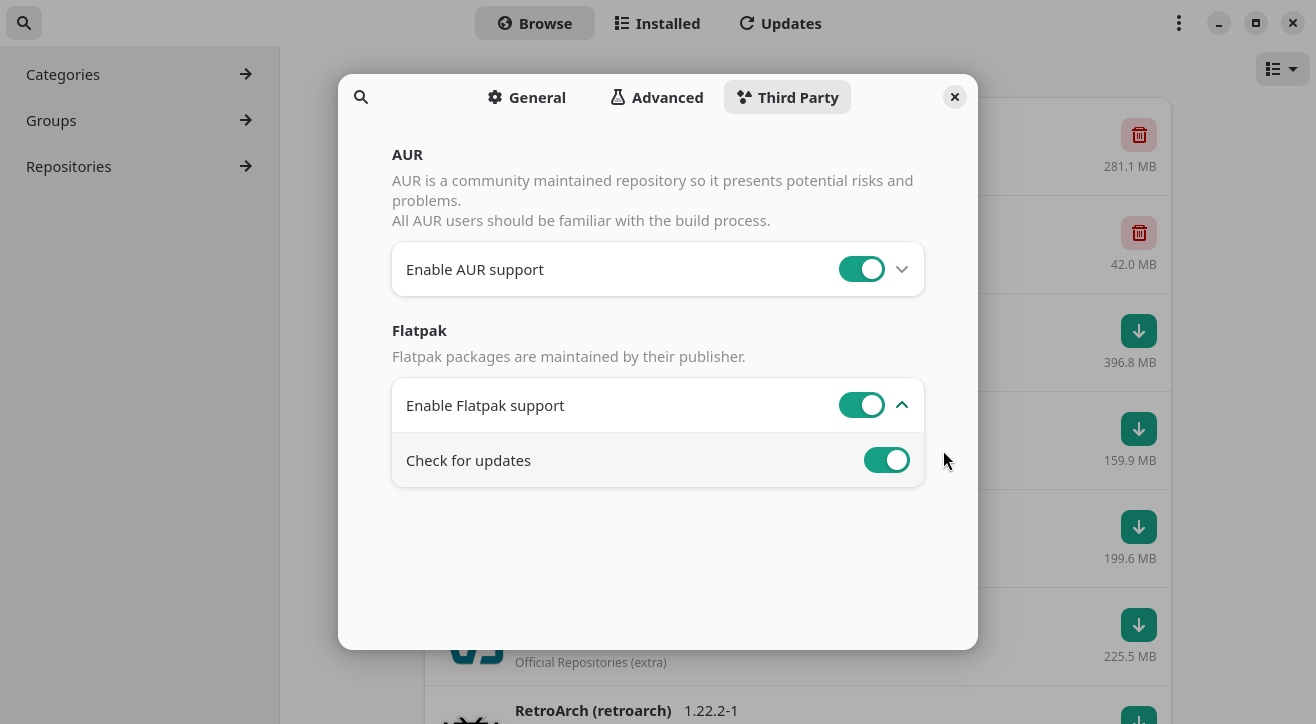
Switch to the Third Party tab and enable the following options:
- Enable Flatpak support; and
- Check for updates.
Back to the main Pamac screen, open the menu and click Refresh databases:
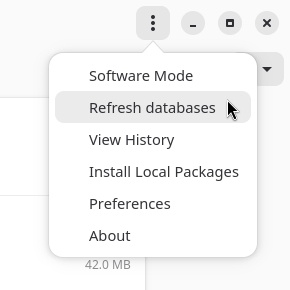
Pamac will retrieve the list of packages available in the official Manjaro repositories (and in the AUR, if enabled), as well as the list of packages available in the Flatpak repositories. After that, you will be able to search and install Flatpak packages.
If you use another Linux distro, see how to install Flatpak on the Flatpak website.
From now on, I’m going to focus on Manjaro and Linux Kamarada.
How to install apps with Flatpak
Now you have everything you need to install Flatpak apps on Linux Kamarada. And you can do this using the Pamac graphical interface or the flatpak command in the terminal.
1) Using the Pamac graphical interface
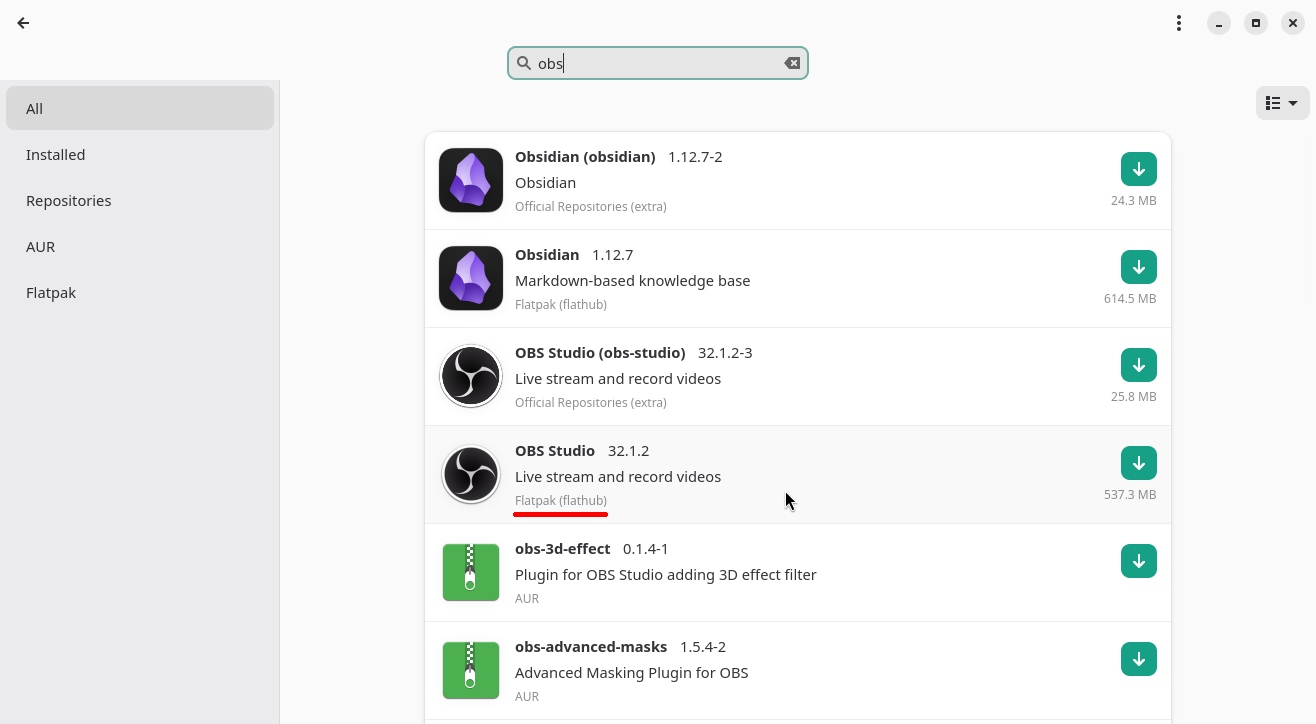
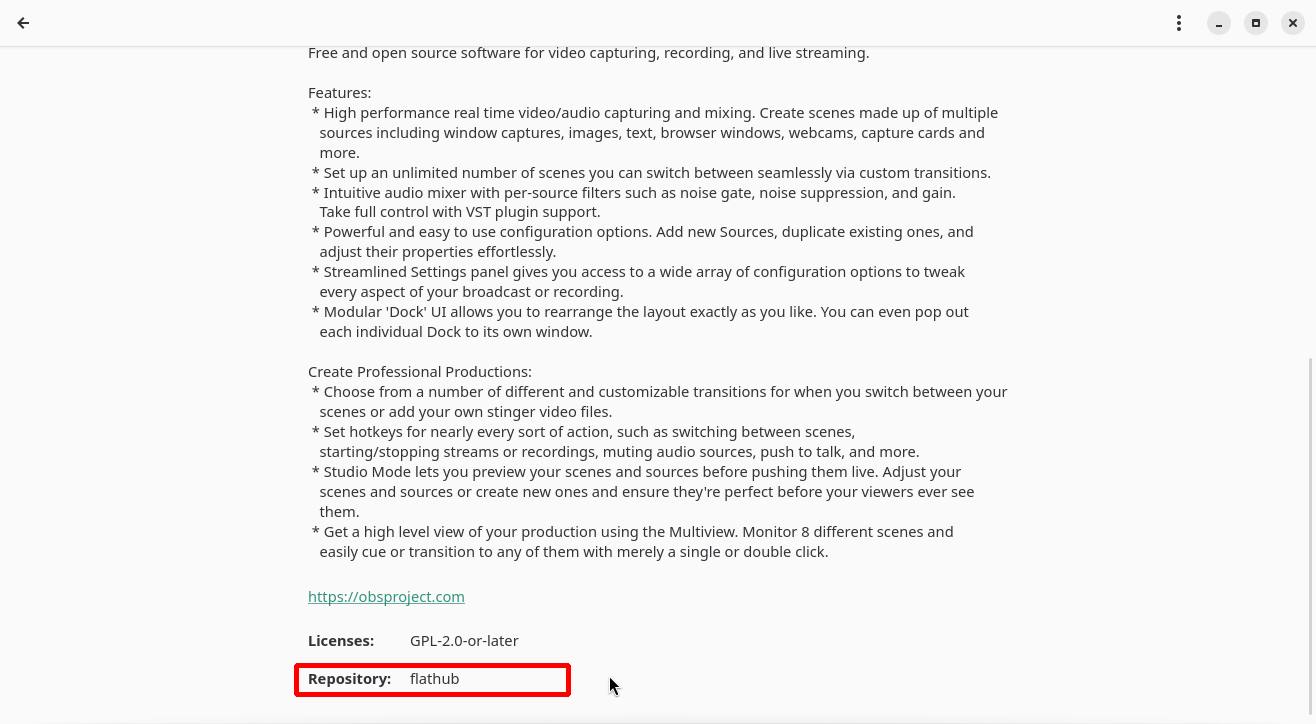
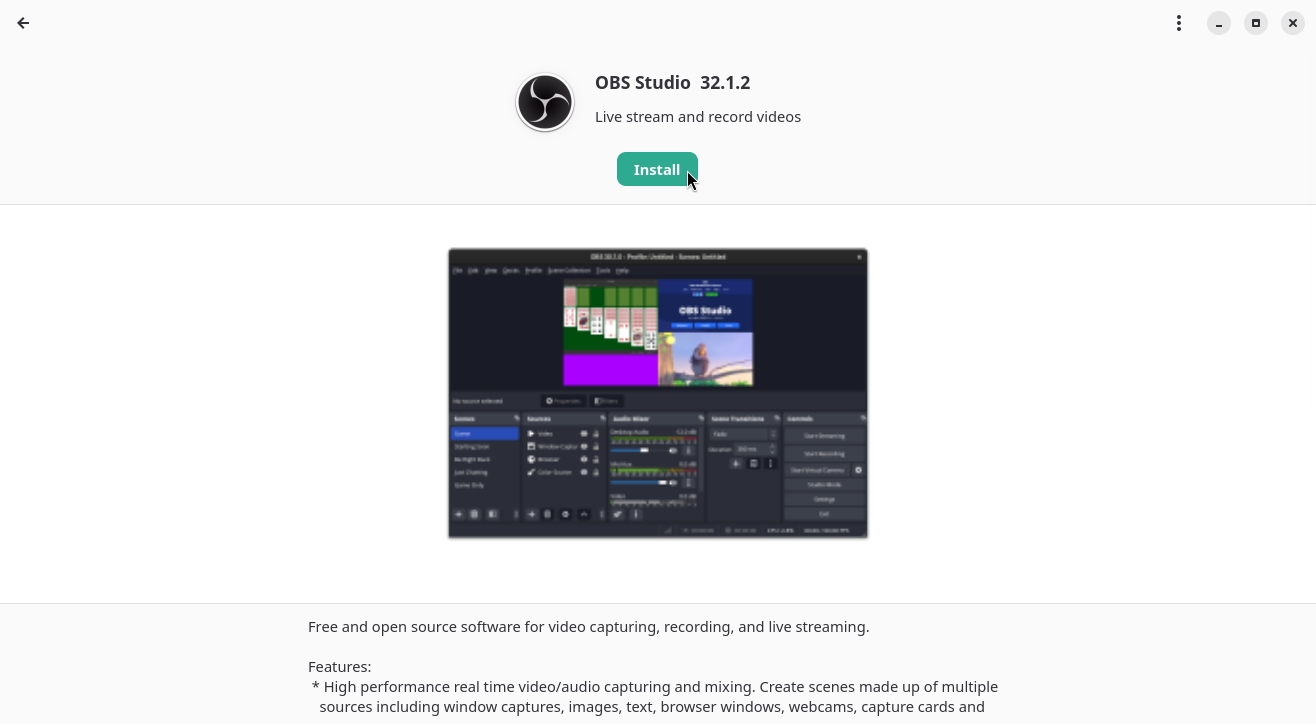
You can search for and install Flatpak apps using the Pamac graphical interface. To do this, open Pamac, search and install the app as you normally would. Notice the indications that it is a Flatpak package from the Flathub repository:
2) Using the flatpak command in the terminal
Are you used to using the pamac command to install programs? To install Flatpak packages, you need to use the flatpak command.
To search for an app, use flatpak search. For example:
1
$ flatpak search shotcut
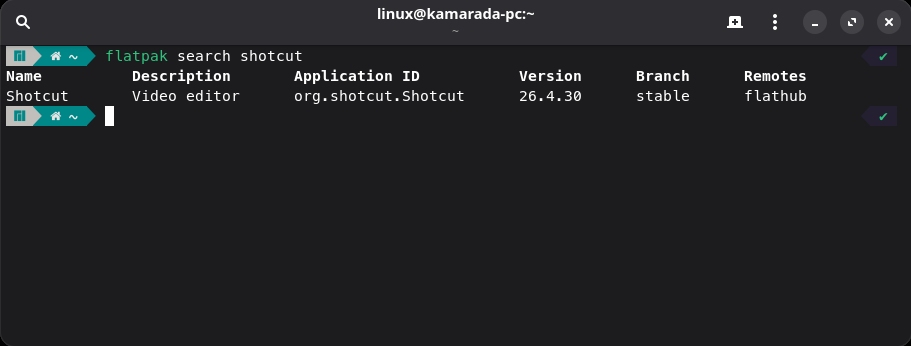
Search will return any apps matching the search terms. Each search result includes the Application ID, which is used for Flatpak operations. In this example, In this example, org.shotcut.Shotcut.
To install the application, use flatpak install. For example:
1
$ flatpak install org.shotcut.Shotcut
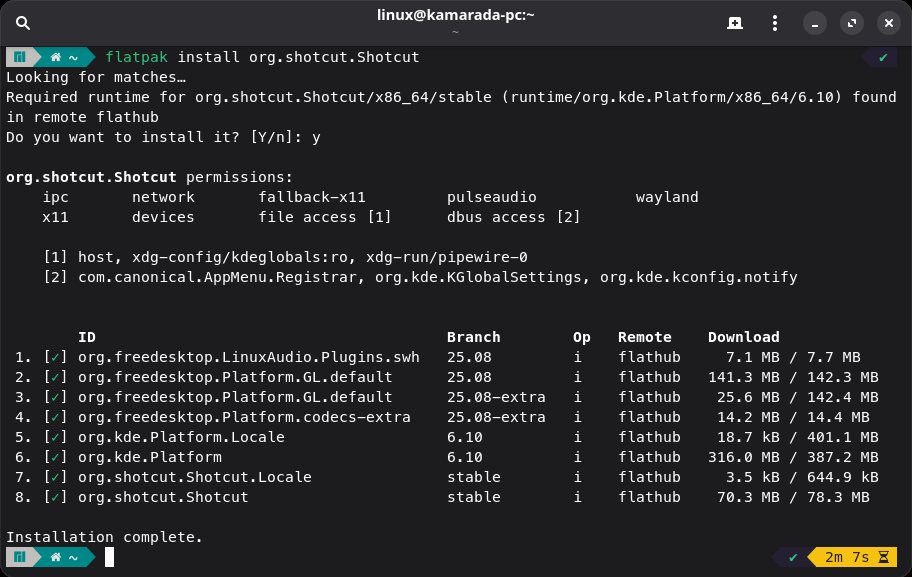
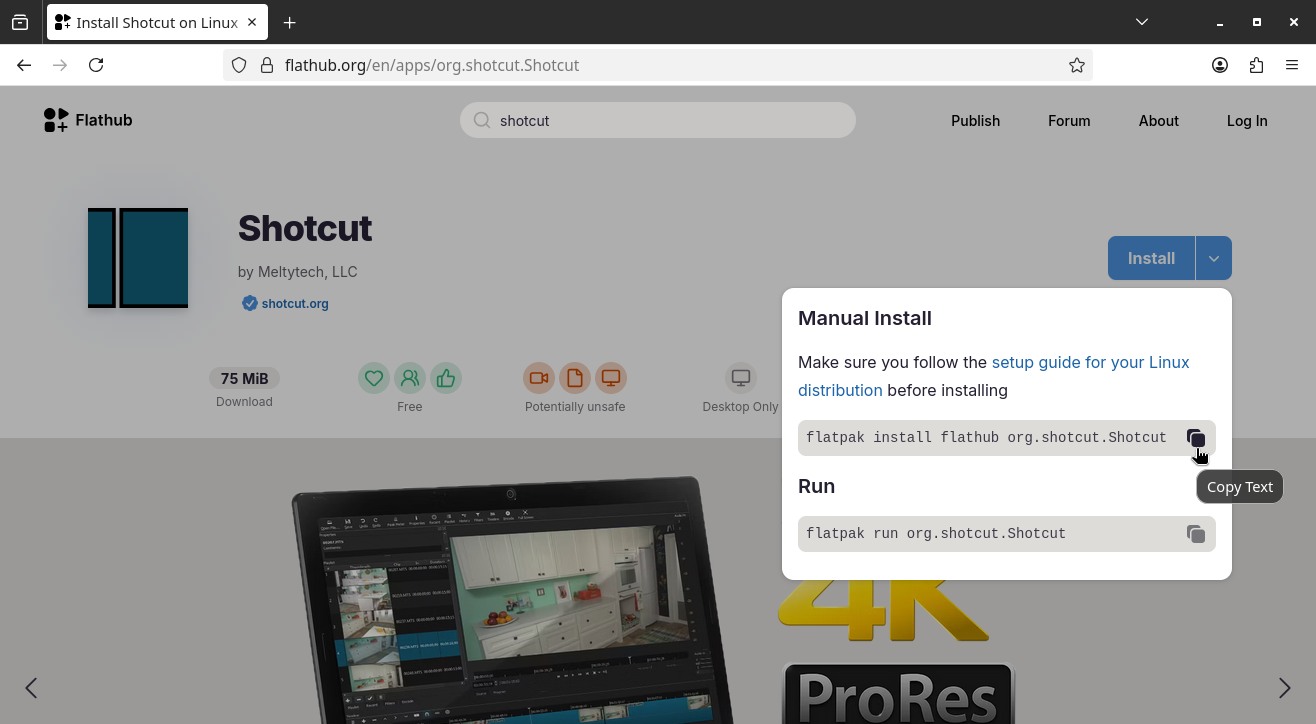
A good tip is to use the Flathub website to search for the app and copy the installation command:
How to start a Flatpak app
Once installed, the app can be started from the Activities menu as usual.
You can also start a Flatpak app from the terminal, using the flatpak run command. For example:
1
$ flatpak run com.spotify.Client
How to update Flatpak apps
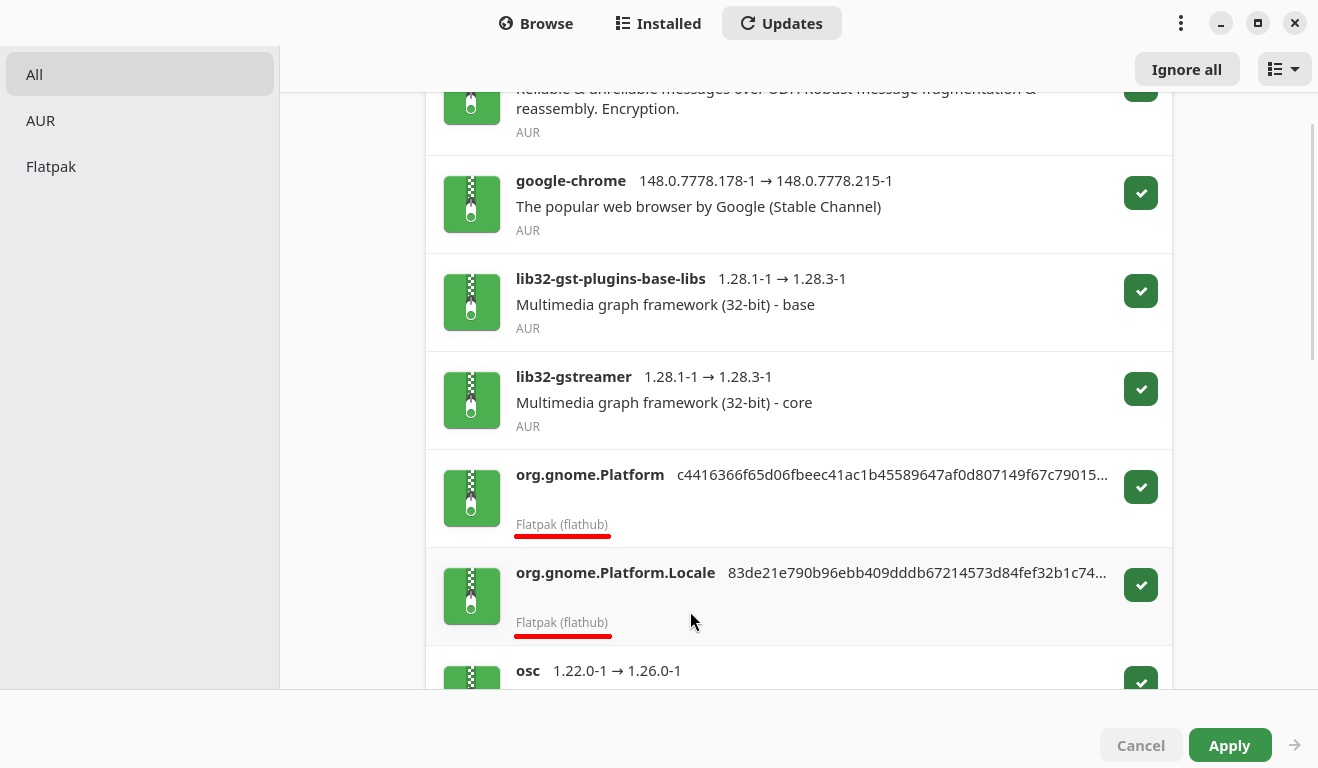
Flatpak packages that are installed on your computer can be updated the same way as other packages, via the Updates tab in the Pamac graphical interface. We will talk about updating the system later.
You can also update all installed Flatpak packages from the terminal by running:
1
$ flatpak update
If you want to update just one app, provide its ID to flatpak update. For example:
1
$ flatpak update de.haeckerfelix.Shortwave
How to uninstall a Flatpak app
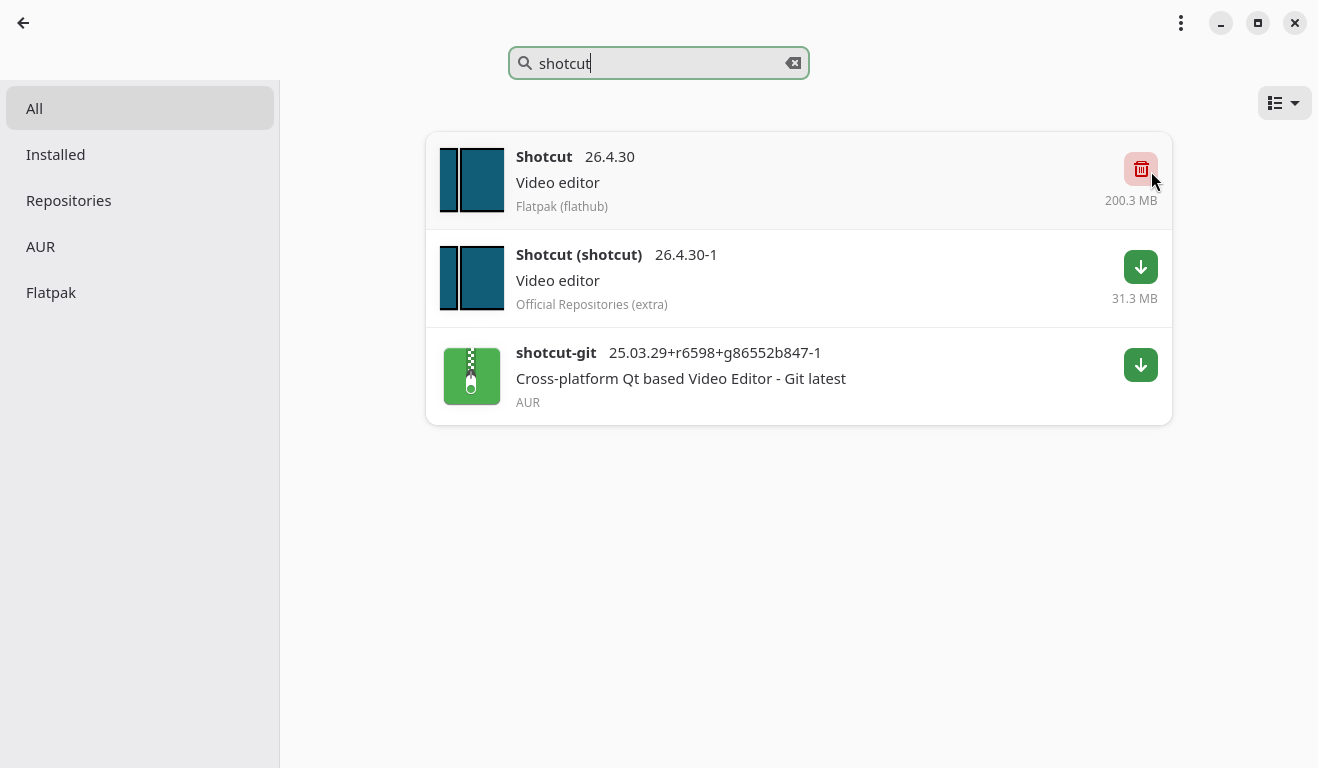
You can uninstall a Flatpak app using the Pamac graphical interface. To do that, search for the app and mark it for removal by clicking the corresponding button on the right:
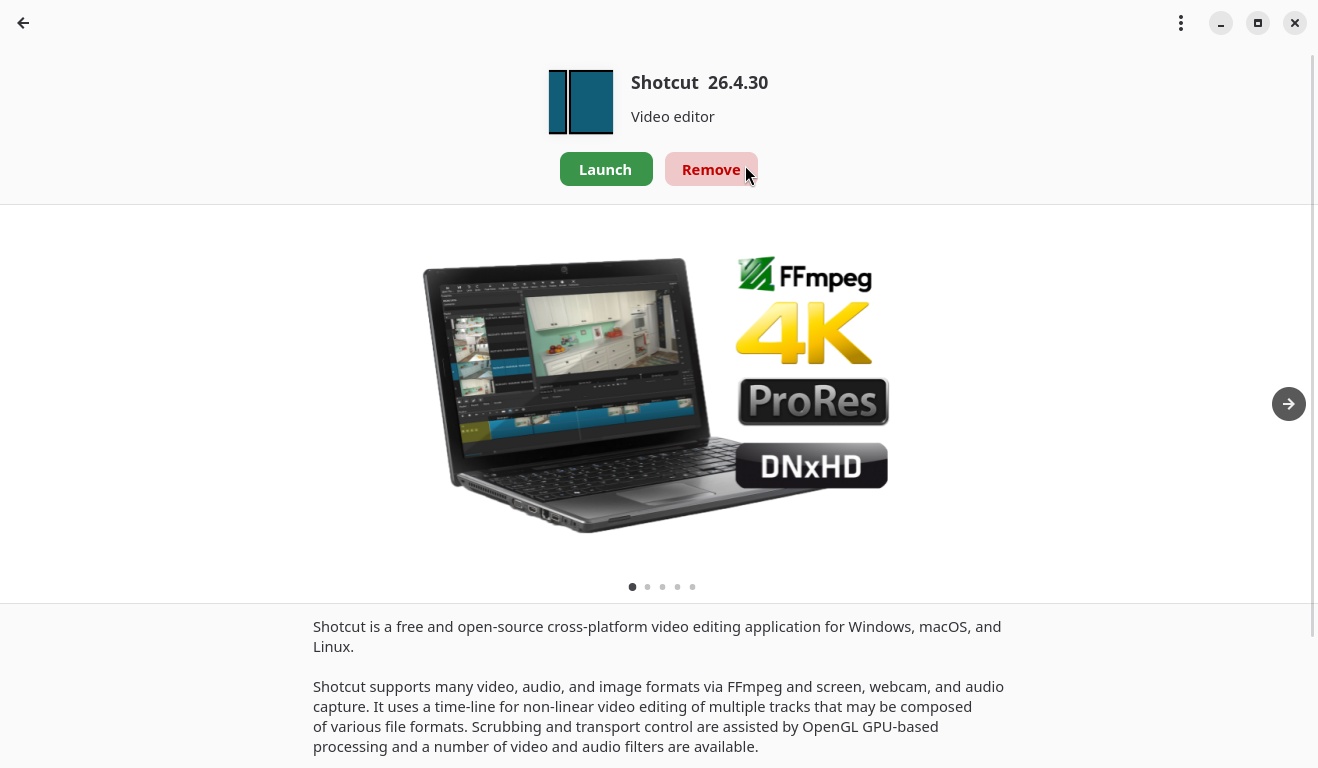
Or you can click it in the list and, on the next screen, which shows more information about it, click the Remove button:
You can also uninstall a Flatpak app from the terminal, using the flatpak uninstall command. For example:
1
$ flatpak uninstall com.obsproject.Studio
Limitations
Not to say that I only said great things about Flatpak, I list some of its issues below. When using Flatpak, be aware of them:
- Flatpak was not designed to be used on servers, only on Linux desktops;
- As a Flatpak package bundles the application and all of its dependencies, it consumes more disk space than traditional packages; and
- As Flatpak apps run on isolated environments, this can limit some features of some apps. For example, Flatpak apps may appear with the default GNOME theme instead of your custom GTK theme, or they may have access only to certain folders such as Documents and Downloads.
Conclusion
I believe that the practicality, the ease of using Flatpak and the convenience provided by the large number of apps available on Flathub more than outweigh its limitations. The balance is positive and Flatpak expands the possibilities for Linux Kamarada users.
I suggest using Flatpak the same way I do: I prefer to install applications from the distribution’s own repositories. But if an app isn’t in those repositories, or it is but I need a newer version that is available on Flathub, then I install that app using Flatpak.
I hope this guide has been helpful to you. Comment if you have any doubts or suggestions.
See you!
References
This article is an updated Manjaro version of the article originally published in January 2022, when Linux Kamarada was based on openSUSE Leap.