Linux Kamarada
If you are interested in privacy and security, or you’re a developer who has seen that Verified badge next to a commit on GitHub, you’ve probably run into the acronym PGP. But what exactly is PGP, what is it for, and how can you start using it? In this article, I’ll give you a quick overview of PGP and show you how to create your own key on Manjaro (and, by extension, on Linux Kamarada) and test that everything is working.
What PGP is
Pretty Good Privacy, better known by the acronym PGP, is an encryption system that’s mainly used for two things:
- encrypting messages/files you’re going to send to someone, so that only the recipient can read/open them; and
- signing messages/files you created, so that anyone can verify that you really are their creator and they were not tampered with along the way.
PGP uses so-called public-key cryptography (or asymmetric cryptography). Each person has a key pair:
- a public key, which can (and should) be shared with anyone; and
- a private key, which only you keep and must be stored carefully.
An analogy that might help understand encrypting: think of the public key as an open padlock that you hand out to everyone. Anyone can use that padlock to lock a box and send it to you, but only you have the (private) key that opens it.
With signing, it’s the other way around: you use your private key to “stamp” a message, and anyone can use your public key to verify that the stamp is really yours.
Today, PGP is an open standard called OpenPGP, and the most widely used program for working with it on Linux is GnuPG (or GPG, a piece of free software). Because of that, in everyday use, the acronyms PGP, OpenPGP, and GPG tend to be used almost as synonyms. But GnuPG is not alone: as the Arch Wiki lists, there are other OpenPGP implementations, such as Sequoia PGP (the sq command). The Thunderbird email client also implements OpenPGP.
What PGP is for
Some examples of what you can do with a PGP key:
- exchange confidential emails and files: the Thunderbird email client, for instance, has native OpenPGP support;
- encrypt your own files, such as backups and sensitive documents, before storing them in the cloud;
- store passwords: password managers such as pass store each password in a file encrypted with your key;
- verify downloads: many projects publish PGP signatures alongside their files, so you can check whether the ISO image you downloaded is authentic. In fact, the Manjaro package manager itself uses GnuPG to verify package signatures before installing them;
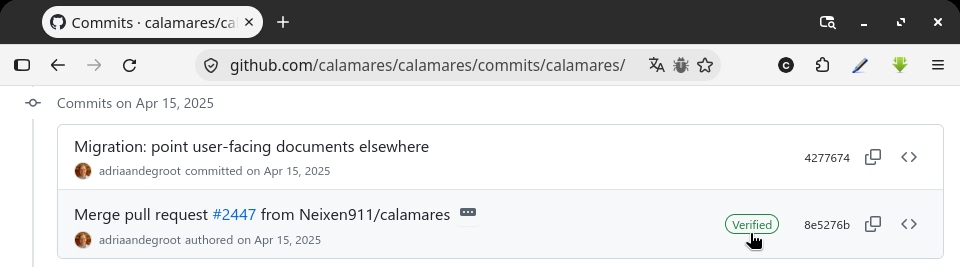
- sign Git commits: this proves that a commit was actually made by you (if you don’t usually sign your commits with your PGP key, someone could try to impersonate you simply by using your name and email in their commits); and
- authenticate via SSH: the same PGP key can be used to access remote servers.
Speaking of the package manager, that’s a good example of PGP being used behind the scenes without you even noticing. As the Arch Wiki explains, Arch Linux maintains a set of main signing keys that certify the keys of all package maintainers. On Manjaro, those keys come in the archlinux-keyring and manjaro-keyring packages and are managed by the pacman-key command. That’s how the system knows that a package was really prepared by the distribution’s team.
How PGP was born
PGP was created in 1991 by the American software engineer Phil Zimmermann. At the time, a bill was moving through the US Senate that could have forced communications companies to let the government read citizens’ messages. Worried that strong encryption might end up banned for ordinary people, Zimmermann rushed to finish PGP and distributed it for free, along with its source code, over the Internet. He tells this story himself in the essay Why I Wrote PGP and in the testimony he gave to the US Senate in 1996.
PGP quickly spread around the world. The problem was that, at the time, the US government classified strong encryption as a weapon, and its export was controlled. Because of that, Zimmermann was investigated for “exporting munitions” without a license. The investigation lasted three years and was closed in January 1996 without any charges being filed.
A curious episode from this story: to get around the export ban, PGP’s source code was published in print, in a book (PGP Source Code and Internals, published by MIT Press in 1995). Books could be exported freely. Outside the US, the book was scanned, the text was recognized via OCR, and the program was compiled again.
After that, PGP became a commercial product, but it also became the OpenPGP open standard, whose current version is RFC 9580, from 2024. And the standard keeps evolving: according to the Arch Wiki, post-quantum cryptography (resistant to future quantum computers) for OpenPGP has already been standardized in RFC 9980. In September 1999, GnuPG 1.0 was released, the free implementation that ships today with almost every Linux distribution.
PGP versus other digital certificates
You’ve probably already heard of digital certificates in at least two situations: the padlock that shows up in your browser when you visit an HTTPS website, and the qualified digital certificates issued under each country’s own public key infrastructure (often on a token or smart card), used to sign legally binding documents or access government systems. Most countries have a scheme like this; examples include eIDAS in the European Union and ICP-Brasil in Brazil.
Under the hood, all three work on the same idea: a public/private key pair. The difference lies in who vouches that a given public key really belongs to its claimed owner:
| PGP | Website certificate | Qualified certificate | |
|---|---|---|---|
| Who vouches for identity | The owner themselves and other people who verified the key | Commercial certificate authorities | Accredited certificate authorities, rooted in a trust framework overseen by the national/regional authority |
| What is verified | Nothing formal, unless someone checks it | Generally, only control over the domain | Documents and identity of the person or company |
| Legal standing | No specific legal presumption | Not applicable (authenticates websites) | Equivalent to a handwritten signature |
| Cost | Free | Can be free (like Let’s Encrypt) | Paid |
In other words, website certificates and qualified certificates follow a hierarchical model: you trust an authority, and the authority attests to the key owner’s identity. PGP, on the other hand, follows a decentralized model, the so-called Web of Trust: you create your own key, and trust comes from verifying the key directly with its owner, or from other people you trust having vouched for that key.
Software developers often display their PGP key’s fingerprint on their social media profiles or personal websites. See, for example, Adriaan de Groot’s GPG key, he is the developer of Calamares, the installer used in Linux Kamarada.
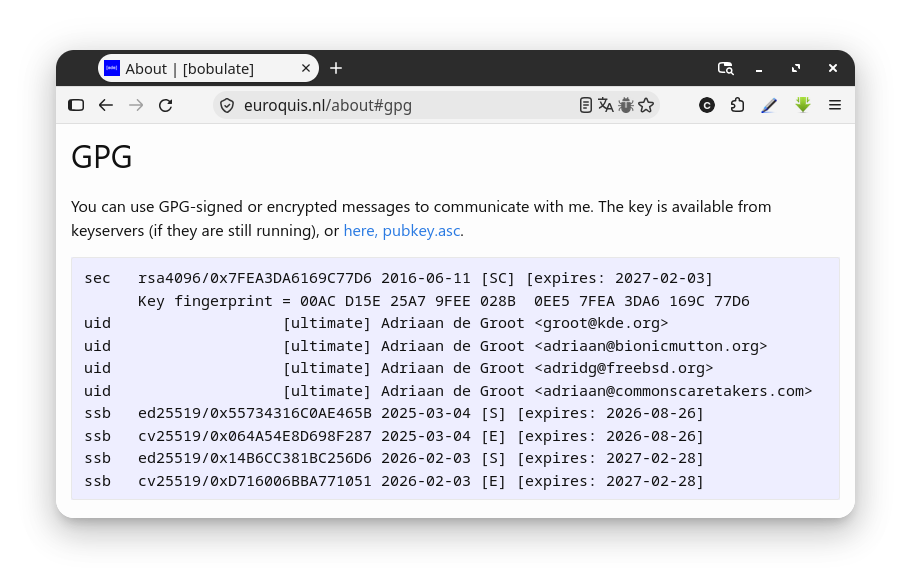
The Arch Wiki sums up the possible levels of assurance nicely, from weakest to strongest: simply trusting a key the first time you receive it (so-called TOFU, trust on first use); trusting key servers that verify the owner’s email; or checking the key’s fingerprint directly with its owner, for instance, in person. Which one is enough depends on how much is at stake.
By the way, technically, what we usually call a “PGP public key” is also a certificate: an OpenPGP certificate, which bundles the public key, the owner’s name and email, and the signatures of whoever vouched for that key.
How to install GnuPG on Manjaro
On Manjaro, GnuPG is very likely already installed, because the package manager itself depends on it. To check, open a terminal and run:
1
$ gpg --version
If the program’s version shows up, you’re all set:
1
2
3
gpg (GnuPG) 2.4.9
libgcrypt 1.12.4
Copyright (C) 2025 g10 Code GmbH
Otherwise, you can install the gnupg package using the pamac command:
1
$ pamac install gnupg
If you’d rather use a graphical interface to manage your keys, you can also use Seahorse, which already comes installed on Linux Kamarada (from the GNOME desktop, and shows up as Passwords and Keys), or install Kleopatra (from KDE), but in this tutorial we’ll stick to the terminal.
How to create your PGP key
To create your key, run:
1
$ gpg --full-generate-key
GnuPG will ask you a few questions. For most of them, you can simply accept the default by pressing Enter:
- kind of key: accept the default, ECC (sign and encrypt), which generates modern, fast, and secure keys;
- elliptic curve: accept the default, Curve 25519;
- expiration: I suggest entering
2y(for 2 years). Don’t worry: you can extend the key’s expiration later. Having an expiration date acts as a safeguard in case you lose the key; - name and email: enter your Real name and the Email address you intend to use with the key;
- comment: you can leave it blank; and
- passphrase: choose a strong password. It protects your private key in case someone gets access to your files.
Done! To see the key you just created, run:
1
$ gpg --list-secret-keys
The output should look something like this:
1
2
3
4
sec   ed25519 2026-11-21 [SC] [expires: 2028-11-20]
      87C934C65BA4166A9A4F622A9D353FCD88C1C290
uid           [ultimate] Linux Kamarada <kamarada@example.com>
ssb   cv25519 2026-11-21 [E] [expires: 2028-11-20]
That long string of letters and numbers is your key’s fingerprint, which uniquely identifies it.
How to test your PGP key
Let’s run two quick tests to check that everything is working: one for signing and one for encrypting.
Test 1: sign and verify
Create a simple text file and sign it:
1
2
$ echo "Hello, PGP" > test.txt
$ gpg --clearsign test.txt
GnuPG will ask for your key’s passphrase and create the file test.txt.asc, which contains the original text followed by a block with the signature:
1
2
3
4
5
6
7
8
9
10
11
12
-----BEGIN PGP SIGNED MESSAGE-----
Hash: SHA512

Hello, PGP

-----BEGIN PGP SIGNATURE-----

iHUEARYKAB0WIQSHyTTGW6QWappPYiqdNT/NiMHCkAUCawDmZgAKCRCdNT/NiMHC
kKJcAQDvYGkj7fIGzUj9S6hTvLr8q+wS7K+7m5wM0Tx5ER2OYAD/c6NUFpP9PRYX
6kuLB1T7gZxX0bBsspAbSig8qShsXgg=
=3gh7
-----END PGP SIGNATURE-----
Now, verify the signature:
1
$ gpg --verify test.txt.asc
You should see a message saying the signature is correct and that it was made by you (Good signature from):
1
2
3
4
gpg: Signature made Fri 20 Nov 2026 09:31:34 PM -03
gpg:                using EDDSA key 87C934C65BA4166A9A4F622A9D353FCD88C1C290
gpg: Good signature from "Linux Kamarada <kamarada@example.com>" [ultimate]
gpg: WARNING: not a detached signature; file 'test.txt' was NOT verified!
To see the signature doing its job, open the test.txt.asc file in a text editor, change one letter of the message, save it, and verify it again. This time, gpg should flag the signature as invalid (BAD signature from):
1
2
3
gpg: Signature made Fri 20 Nov 2026 09:31:34 PM -03
gpg:                using EDDSA key 87C934C65BA4166A9A4F622A9D353FCD88C1C290
gpg: BAD signature from "Linux Kamarada <kamarada@example.com>" [ultimate]
Test 2: encrypt and decrypt
Now, encrypt the file for yourself (replace the email with the one you used for your key):
1
$ gpg --encrypt --armor -r kamarada@example.com test.txt
This creates the file test.txt.asc (if it asks whether to overwrite it, answer yes by typing y and then Enter). If you open it, you’ll see just a bunch of meaningless characters:
1
2
3
4
5
6
7
8
-----BEGIN PGP MESSAGE-----

hF4DmdWzhUldAZESAQdAoTvuqdnSRIFf4ghn40kdD8g5b0ZYEf2wT2q/E2fVi38w
wMzrzXAnd/pjJT5m178F46wJuTyKzJz5LM3C9BzR5ukKATSNDnkHfVxFx2zyX0um
0k4BKOIm7yrck9/elmffjZXrMGFNyTCYFEGm0sZdgHVq8UP/JueZRHN+xoFRPlh5
scDuzdy3XFEGD9lpv/bxpUAKVBflyGKaaDB6B5iqTGo=
=l9B5
-----END PGP MESSAGE-----
To decrypt it:
1
$ gpg --decrypt test.txt.asc
The original message “Hello, PGP” should appear on the screen:
1
2
3
gpg: encrypted with cv25519 key, ID 99D5B385495D0191, created 2026-11-21
      "Linux Kamarada <kamarada@example.com>"
Hello, PGP
If it doesn’t ask for your passphrase, don’t worry: GnuPG keeps the passphrase in memory for a few minutes so it doesn’t have to ask every time.
If both tests worked, congratulations: your PGP key is ready to use!
How to back up your PGP key
If you lose your private key, you won’t be able to decrypt anything that was encrypted for it. So make a backup and store it somewhere safe, ideally off the computer (such as on a USB drive or an external hard disk):
1
$ gpg --armor --export-secret-keys kamarada@example.com > private-key-backup.asc
When it created your key, GnuPG also created a revocation certificate in the ~/.gnupg/openpgp-revocs.d folder. It can be used to invalidate your key in case it is lost or stolen. This matters because, as the EFF guide points out, deleting your private key does not invalidate your public key: other people can keep encrypting messages for you that you won’t be able to read.
Limitations
PGP is quite secure, but it’s no miracle worker. A few important points:
- metadata isn’t encrypted: as the EFF guide warns, when exchanging emails with PGP, the message content is encrypted, but the sender, the recipient, and the subject remain visible;
- no forward secrecy: if your private key ever leaks, old messages encrypted for it could also be read. According to the Arch Wiki, this is one of the topics for upcoming OpenPGP standardization work; and
- not that easy to use: managing keys takes some care. For everyday conversations, messaging apps such as Signal tend to be more practical.
Learn more
- OpenPGP, on the Arch Wiki: an overview of the standard, the tools, hardware devices, and key servers; and
- How to Use PGP for Linux, from the EFF’s Surveillance Self-Defense guide: a tutorial on using PGP with Thunderbird. Note that the guide was last reviewed in 2018 and uses the Enigmail add-on, which is no longer needed, since Thunderbird now has native OpenPGP support, but the security recommendations are still valid.
Next steps
Important: set a reminder to renew your PGP key a bit before it expires!
In this article, we’ve barely scratched the surface of PGP. There’s still a lot to explore. Note that PGP has already come up in other articles on this blog; you might want to continue your reading there:
- Integrity and authenticity verification with SHA-256 and GPG
- How to add your GPG key to GitHub and GitLab and sign your commits
I plan to cover these topics in future articles:
- how to share your public key and import other people’s keys, including using key servers such as keys.openpgp.org, and the Web Key Directory (WKD);
- how to use PGP to exchange encrypted emails with Thunderbird;
- how to renew or revoke your keys; and
- how to store your key on a compatible hardware device, such as a SafeNet token.
If you’re especially interested in any of these topics, or have suggestions for others, let me know in the comments! See you next time!